Help Centre
Tax Reporting
Automate FATCA and CRS reporting obligations, produce validated XML filings, and maintain a complete audit trail from data collection through to submission.
Key points
- Covers both FATCA and CRS reporting obligations from a single module
- Thorough configuration is the key to producing correct reports first time
- Every operation – creation, verification, approval, submission – is fully audited
- Reports progress through a controlled workflow: New → Produced → Verified → Approved → Submitted
- XML output is generated automatically – no manual XML editing required
- Amendments, corrections, and voids are handled natively after submission
Overview
PlainSail's Tax Reporting module automates the preparation, review, and submission of FATCA and CRS filings for all entities under your administration. The module is designed to significantly reduce the compliance burden by controlling every stage of the process – from creating empty report records, through data verification and managerial approval, to generating validated XML files ready for transmission to the relevant tax authority portal.
The module draws data from entities, relationships, compliance records, and bookkeeping ledgers already held within PlainSail. This means the majority of the information required for a tax report is populated automatically, eliminating redundant data entry and reducing the risk of transcription errors.
All operations within the tax reporting module are recorded in the PlainSail audit log. Every report creation, data amendment, verification, approval, submission, and correction is attributed to a named user with a timestamp, providing a defensible compliance trail for regulatory examination.
Configuration Overview
Before producing your first tax report, the module must be configured at two levels: Global settings that apply across the entire system, and Entity-level settings that are specific to each administered entity.
Global Settings
Global configuration is performed from the Admin → Tax Reporting screen and covers the following areas:
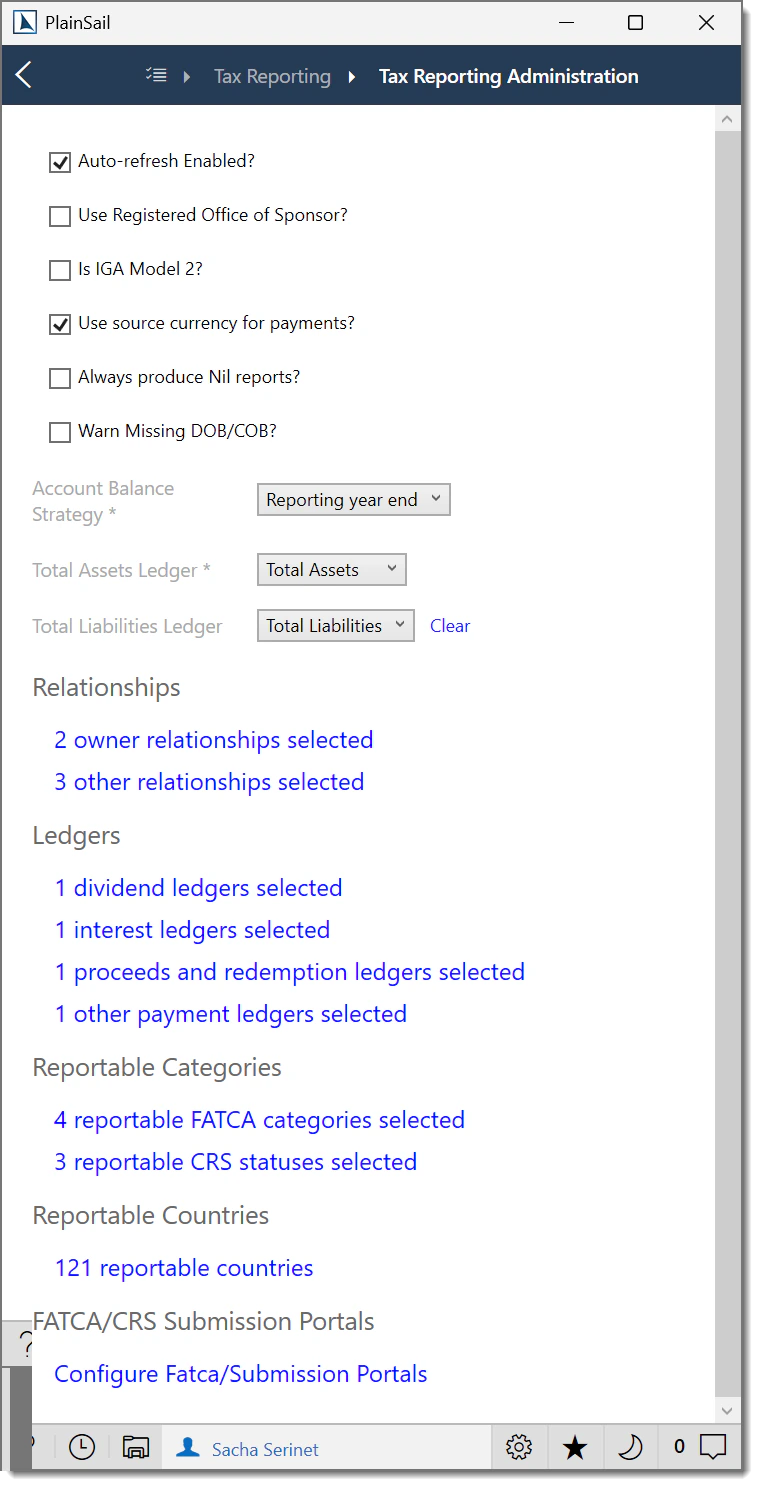
- Report refresh behaviour – choose whether report records are created automatically on a scheduled refresh or only when triggered manually by a user.
- Relationships – define which relationship types represent ownership interests and which represent other reportable connections (see Configuring Relationships).
- Payment ledgers – map your chart-of-accounts ledgers to the four FATCA/CRS payment categories: Dividends, Interest, Proceeds & Redemptions, and Other Payments (see Configuring Payment Ledgers).
- FATCA & CRS classifications – specify which tax classifications are reportable and which are excluded (see FATCA & CRS Classifications).
- User permissions – assign tax reporting roles to the appropriate user groups (see User Permissions & Groups).
Entity-Level Settings
Each administered entity requires its own configuration before it can appear in a tax report:
- Tax reporting obligations – record each entity's TIN, reporting jurisdiction, start date, and whether the entity is reportable (see Tax Reporting Obligations).
- Tax classifications – assign a FATCA Category, FATCA Subcategory, and CRS Status to each entity (see Entity Tax Categories).
- Relationships – ensure that all ownership and other reportable relationships are recorded for each entity and that the connected parties have the correct tax details.
Configuring Relationships
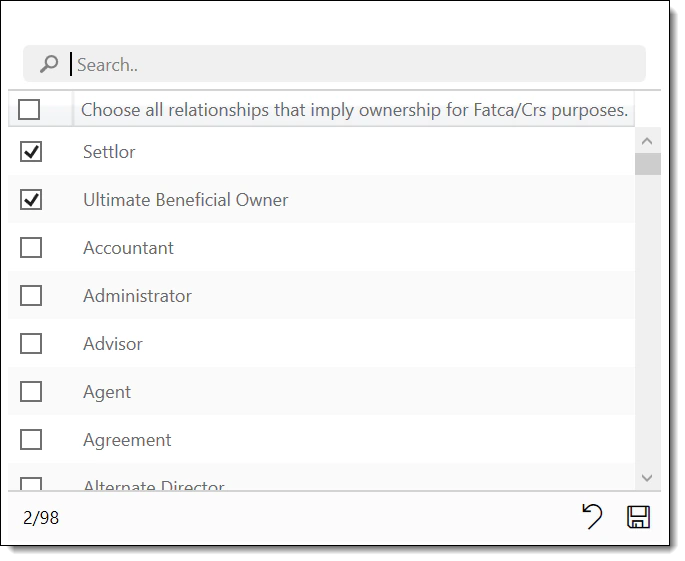
Tax reports include information about the natural persons and entities that have a reportable connection to each administered entity. PlainSail needs to know which of your configured relationship types represent Ownership interests and which represent Other relevant connections.
Ownership Relationships
These are relationships where the connected party holds a direct or indirect ownership or controlling interest in the entity. Typical examples include:
- Owner – a direct shareholder or unit-holder.
- Beneficial Owner – the natural person who ultimately owns or controls the entity.
- UBO (Ultimate Beneficial Owner) – the individual at the top of the ownership chain.
- Settlor – the person who established a trust and transferred assets into it.
Other Relationships
These are relationships that do not represent ownership but are still relevant for FATCA/CRS reporting. Common examples include:
- Beneficiary – a person entitled to benefit from a trust or other arrangement.
- Protector – a person with oversight or veto powers over a trust.
- Trustee – the legal holder of trust assets.
How to Configure
Navigate to Admin → Tax Reporting → Relationships. The screen displays all relationship types currently defined in your system. For each type, use the checkboxes to indicate whether it should be treated as an Ownership relationship, an Other relationship, or neither (not reportable).
Configuring Payment Ledgers
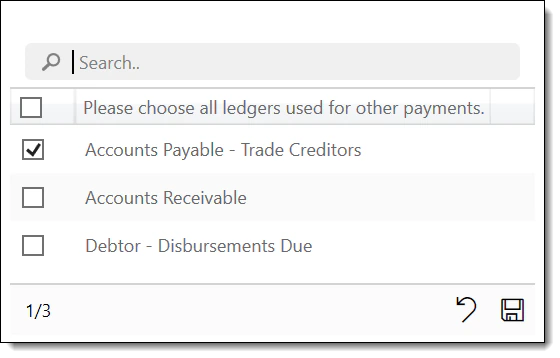
FATCA and CRS reports include details of payments made to account holders. PlainSail derives these payment amounts from your bookkeeping ledgers. To enable this, you must map your ledgers to the four standard FATCA/CRS payment categories:
- Dividends – dividend income distributed to account holders.
- Interest – interest payments made to account holders.
- Proceeds & Redemptions – gross proceeds from the sale or redemption of financial assets.
- Other Payments – any other payments that fall within the reporting obligation.
Ledger Requirements
Each ledger used for tax reporting must have its subledger type set to AnyEntity. This is because the system needs to attribute payment amounts to individual entities (account holders). If a ledger does not have an entity subledger, the system cannot break down the total into per-entity amounts.
Recording Ledgers in Configuration
Navigate to Admin → Tax Reporting → Payment Ledgers. For each of the four categories, select the ledger (or ledgers) from your chart of accounts that correspond to that payment type. You may assign multiple ledgers to a single category if your chart of accounts uses separate ledgers for different currencies or entity types.
How Payment Amounts Are Derived
When a report is generated, payment amounts are derived automatically from the entity’s bookkeeping ledgers using the following process:
- The system identifies the entity’s reporting period (typically a calendar year).
- It queries the trial balance for the relevant ledger accounts (income, distributions, sales proceeds).
- Payment amounts are categorised by type: Dividends from investment income accounts, Interest from interest income accounts, Gross proceeds from investment disposal accounts, and Other income from miscellaneous income accounts.
- Amounts are converted to the reporting currency using the exchange rates at the reporting date.
- The system applies the reporting jurisdiction’s rules to determine which amounts are reportable.
FATCA & CRS Classifications
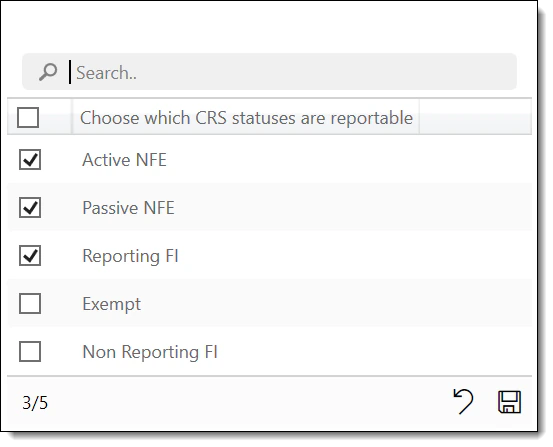
Not every entity classification triggers a reporting obligation. The Classifications configuration screen allows you to specify which CRS Statuses and FATCA Categories are considered reportable, and which are not.
CRS Status Configuration
Navigate to Admin → Tax Reporting → CRS Classifications. The screen lists all available CRS Status values. Tick each status that should be treated as reportable. For example:
- Passive NFE (Non-Financial Entity) – typically reportable, as controlling persons must be reported.
- Reporting Financial Institution – reportable, as it reports on its own account holders.
- Active NFE – typically not reportable (untick).
FATCA Category Configuration
Navigate to Admin → Tax Reporting → FATCA Classifications. The same tick/untick approach applies. Mark each FATCA Category that requires reporting. Common reportable categories include Passive NFFE and Owner-Documented FFI.
User Permissions & Groups
Access to the tax reporting module is governed by a set of dedicated permission roles. Each role grants a specific capability, and roles are assigned to user groups via Admin → User Groups.
- Entities_TaxReporting_View – allows a user to view the tax reporting tab on entities and see existing report data. This is a read-only permission.
- TaxReport_Administer – grants full administrative access to the tax reporting module, including configuration of global settings, relationships, ledgers, and classifications.
- TaxReport_StartManual – allows a user to manually trigger the creation of new report records (the "Refresh" action on the Tax Reports screen).
- TaxReport_VerifyData – allows a user to open a produced report, review the data, and mark it as verified.
- TaxReport_ApproveData – allows a manager or senior user to approve a verified report, advancing it to the submission-ready stage.
- Entities_AmendDataBeforeSubmission – allows a user to edit report data after the report has been produced but before it has been submitted.
- Entities_AmendDataAfterSubmission – allows a user to edit report data after the report has been submitted, triggering the amendment workflow.
Entity Tax Categories
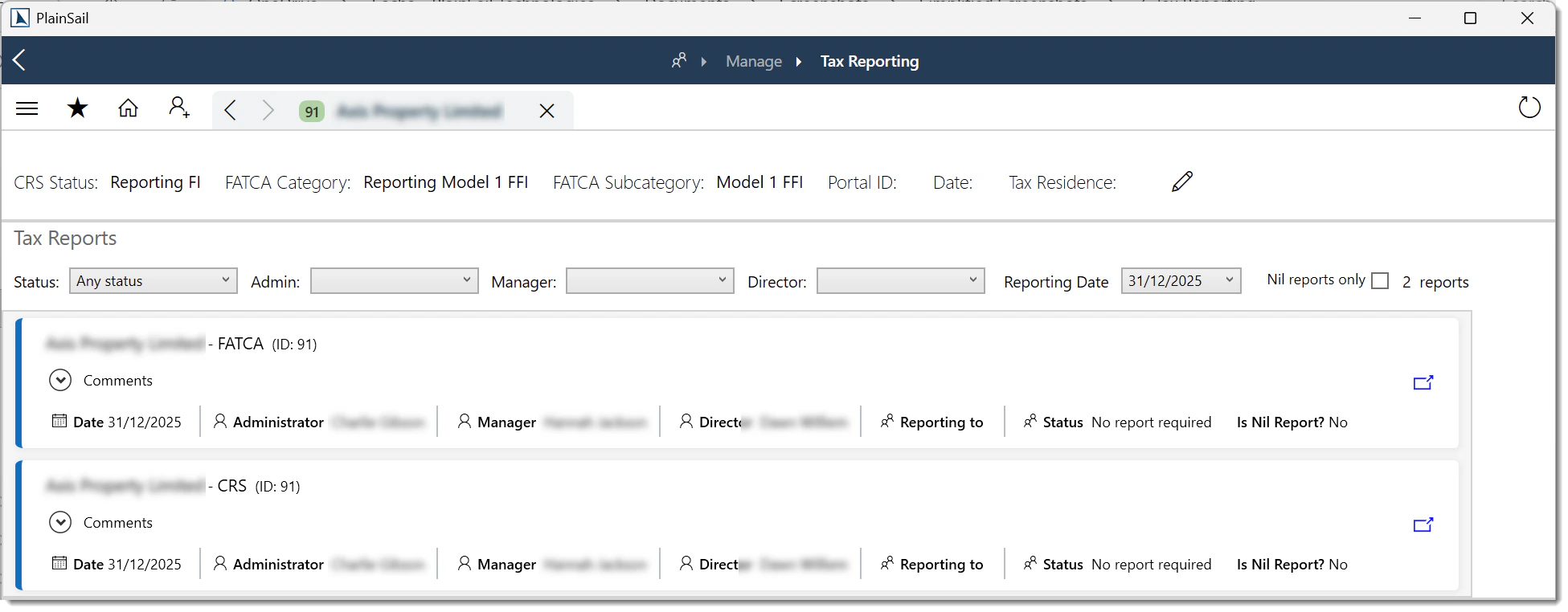
Every administered entity must have a FATCA Category, a FATCA Subcategory, and a CRS Status assigned before it can be included in a tax report. These classifications determine how the entity is treated under each reporting regime and whether its account holders (related parties) are reportable.
Setting Tax Categories
Navigate to the entity record, then select Manage → Tax Reporting. The Tax Reporting tab displays the current FATCA and CRS classifications. Use the dropdown fields to assign the appropriate values:
- FATCA Category – the entity's classification under FATCA (e.g., Trustee-Documented Trust, Sponsored Investment Entity, Non-Reporting IGA FFI).
- FATCA Subcategory – a more specific classification where applicable (e.g., Sponsored Closely Held Investment Vehicle).
- CRS Status – the entity's classification under CRS (e.g., Passive NFE, Reporting Financial Institution, Active NFE).
Bulk Review
You can review the tax classification status of all entities from ToDo → Tax Reporting. This screen provides a consolidated view showing which entities have their classifications set and which still require attention. Use the filters to identify entities with missing or incomplete tax categories.
Tax Reporting Obligations
A tax reporting obligation records the fact that an entity is required to file FATCA and/or CRS reports with a specific jurisdiction. Each obligation captures the following details:
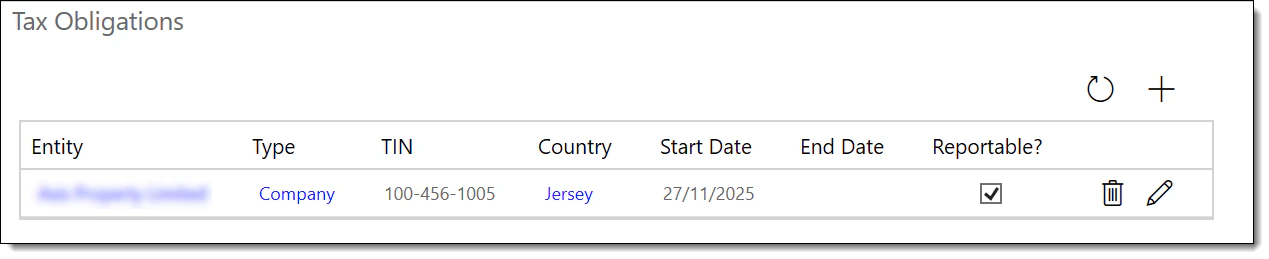
- TIN (Tax Identification Number) – the entity's tax identification number in the reporting jurisdiction.
- Jurisdiction – the country or territory to which the report will be filed.
- Start Date – the date from which the entity became reportable. This is a critical field – if the start date does not predate the reporting period end date, the entity will not be included in reports for that period.
- Reportable flag – indicates whether the entity is currently active for reporting. Unticking this flag excludes the entity from future report runs without deleting historical data.
Recording Obligations Per Entity
Navigate to the entity record, then select Manage → Tax Reporting → Obligations. Click Add Obligation and complete the required fields. An entity may have multiple obligations if it reports to more than one jurisdiction.
Bulk Obligation Management
For large portfolios, recording obligations one entity at a time can be time-consuming. The ToDo → Tax Reporting screen provides a consolidated view where you can filter entities by jurisdiction, classification, or obligation status and perform bulk updates.
Multi-Jurisdiction Reporting
For entities with reporting obligations in multiple jurisdictions, each jurisdiction requires a separate report record. Navigate to Global Info › Tax Reporting › Obligations to see all configured obligations across entities and jurisdictions. When generating reports, each jurisdiction’s report is produced individually – the same underlying entity data is used, but filtering and reporting rules differ per jurisdiction. Each jurisdiction’s completed report must be submitted to the respective tax authority portal.
Creating Report Records
Report records are created from the Tax Reports screen, accessible from the main navigation. This screen lists all FATCA and CRS report records across all entities and reporting periods.
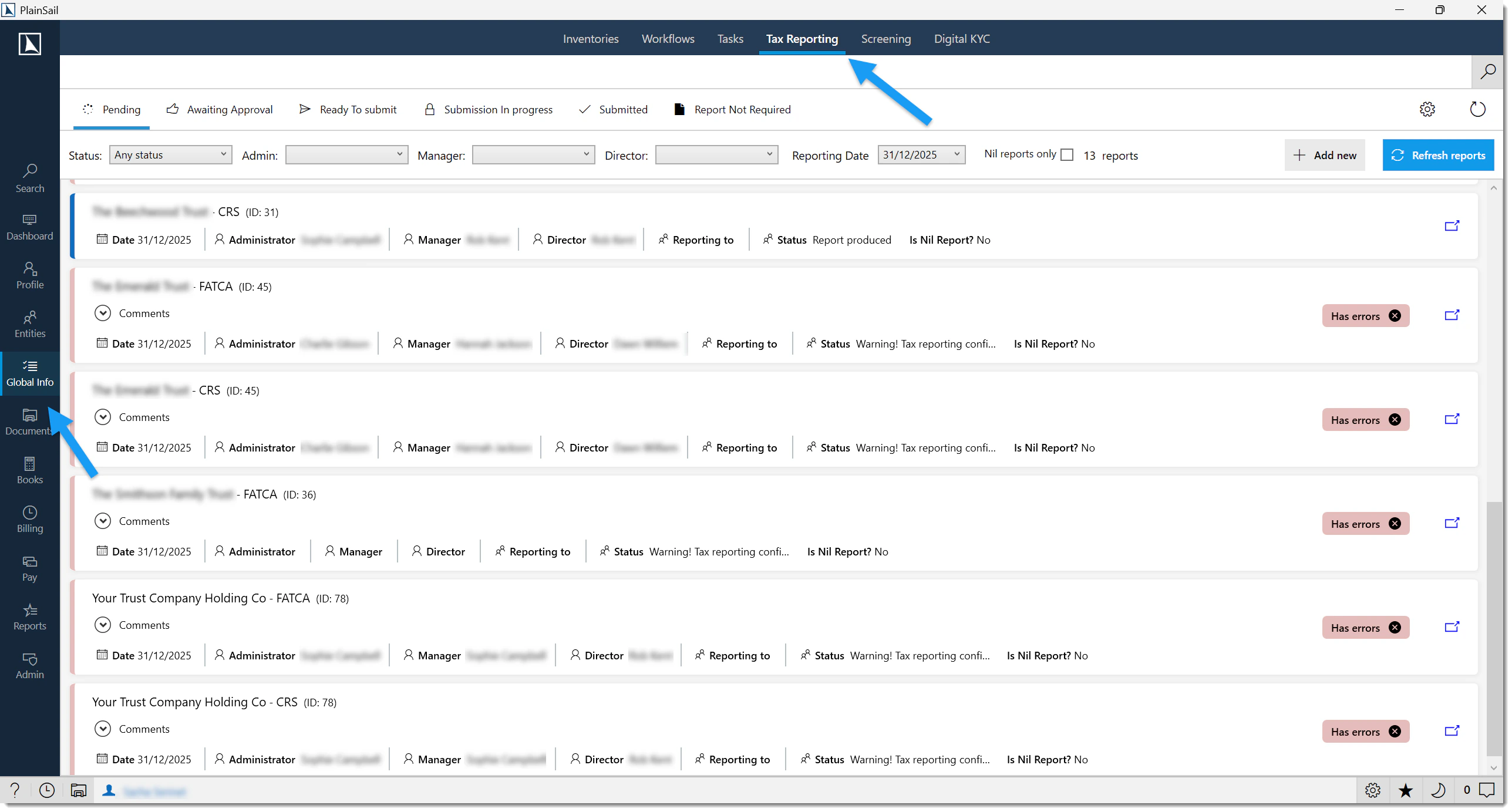
Automatic vs Manual Refresh
Depending on your global configuration, report records may be created automatically on a scheduled basis, or only when a user triggers a manual refresh. In either case, the system evaluates every administered entity against its obligations, tax classifications, and relationships to determine whether a report record should be created.
To trigger a manual refresh, click the Refresh button on the Tax Reports screen. The system will scan all entities and create new report records for the current reporting period where they do not already exist.
Report Statuses
Each report record progresses through a series of statuses:
- New – the record has been created but no report has been generated yet.
- ReportProduced – the report has been generated and is ready for review.
- ReportOk – the report data passed validation with no warnings.
- ReportWarnings – the report has been generated but contains data quality warnings that should be reviewed.
- Errored – the report generation failed due to an error (check the error log for details).
- Verified – a user has reviewed the data and confirmed it is correct.
- Approved – a manager has approved the verified report.
- RejectedByApprover – the approver rejected the report; it must be corrected and re-verified.
- NoReportRequired – the entity has no reportable accounts for this period.
- NotRequiredByCustomer – the customer has indicated that this report is not required.
- SubmissionInProgress – the XML file is being generated or uploaded.
- Submitted – the report has been exported as XML and submitted.
- SubmissionError – the submission failed (e.g. XML validation error); review and retry.
Report Warnings Reference
When a report is generated with a status of ReportWarnings, one or more of the following warning types will appear in the report editor’s validation panel. Each warning shows the affected entity, the field with the issue, and a suggested action.
| Warning Type | Indicator | Description |
|---|---|---|
| Missing TIN | Yellow triangle icon | A reportable account holder does not have a Tax Identification Number recorded. |
| Invalid TIN format | Red triangle icon | The TIN does not match the expected format for the jurisdiction. |
| Missing address | Yellow triangle icon | A reportable person does not have a complete address on file. |
| Missing date of birth | Yellow triangle icon | A reportable individual does not have a date of birth recorded. |
| Nil report detected | Blue information icon | No reportable accounts exist for this jurisdiction/period, suggesting a nil report. Contains the comment #DetectedNilReport. |
| Duplicate accounts | Orange warning icon | The same account appears to be reported in multiple report records. |
Actions for New Records
When a report record is in the New status, the following actions are available:
- Create Report – generates the report by pulling data from the entity, its relationships, and its payment ledgers. The status advances to ReportProduced (or ReportWarnings if issues are detected).
- Delete – removes the report record entirely. Use this if the record was created in error.
- Create Empty Report – creates a blank report shell that can be populated manually via the Report Editor. Useful for edge cases where automatic data population is not appropriate.
- Make Not Required – marks the entity as not requiring a report for this period. The record is retained for audit purposes but excluded from further processing.
Report Workflow
Each tax report progresses through a six-step workflow that ensures data accuracy, proper oversight, and a complete audit trail. The steps must be completed in sequence by users with the appropriate permissions.
New – Create the Report
Before creating a report, verify that the entity's bookkeeping is up to date for the reporting period. Outstanding transactions, unreconciled bank accounts, or unposted journals may result in incorrect payment figures. When you are satisfied, select the report record and click Create Report. The system pulls data from the entity, relationships, and ledgers. If the process completes without issues, the status advances to ReportProduced. If data quality warnings are detected (e.g., missing TIN, incomplete address), the status is set to ReportWarnings.
View Data – Review the Report
Open the report in the Report Editor to examine the data that has been populated. The editor displays the Reporting FI details, account holder information, ownership details, and payment amounts. Cross-check the data against source records and ensure that all figures and classifications are correct. Pay particular attention to any fields highlighted with warning indicators.
Verify – Confirm Data Accuracy
Once you have scrutinised the report data and resolved any warnings, click Verify Report. This action records your name and the timestamp against the report, attesting that the data has been reviewed and is believed to be correct. The status advances to Verified. If there are unresolved warnings, the system will prompt you to confirm that you wish to proceed despite the issues. Reports with status ReportOk can also be verified directly.
Approve – Managerial Sign-off
A user with the TaxReport_ApproveData permission (typically a manager or compliance officer) reviews the verified report. The approver can either Approve the report – advancing it to submission-ready status – or Reject it, which sets the status to RejectedByApprover. Rejected reports are returned to the verification stage so the original reviewer can address the feedback and re-verify.
Submit – Generate XML Output
Once approved, the report appears on the Ready to Submit tab. Select one or more reports and choose whether to produce a Single XML file (one file per report) or a Consolidated XML file (multiple reports combined into a single file). Specify the output folder and click Submit. The system generates the validated XML file(s) and saves them to the designated location. The report status advances to Submitted.
Transmit – Upload to the Tax Authority Portal
The final step is to upload the generated XML file(s) to the relevant tax authority portal (e.g., the AEOI portal for CRS or the IRS IDES for FATCA). This step is performed manually outside PlainSail, as each jurisdiction has its own submission portal and authentication requirements. Once uploaded, retain confirmation receipts and record the submission date for your compliance records. If you need to make changes after submission, use the Unsubmit option to return the report to the Approved status (see Amending Submitted Reports).
Report Editor
The Report Editor is the primary interface for viewing and modifying the data within an individual tax report. It is opened by clicking on a report record from the Tax Reports screen.

Header Section
The header displays the report's entity name, reporting period, jurisdiction, report type (FATCA or CRS), and current status. The header fields are read-only and are derived from the entity's configuration and obligations.
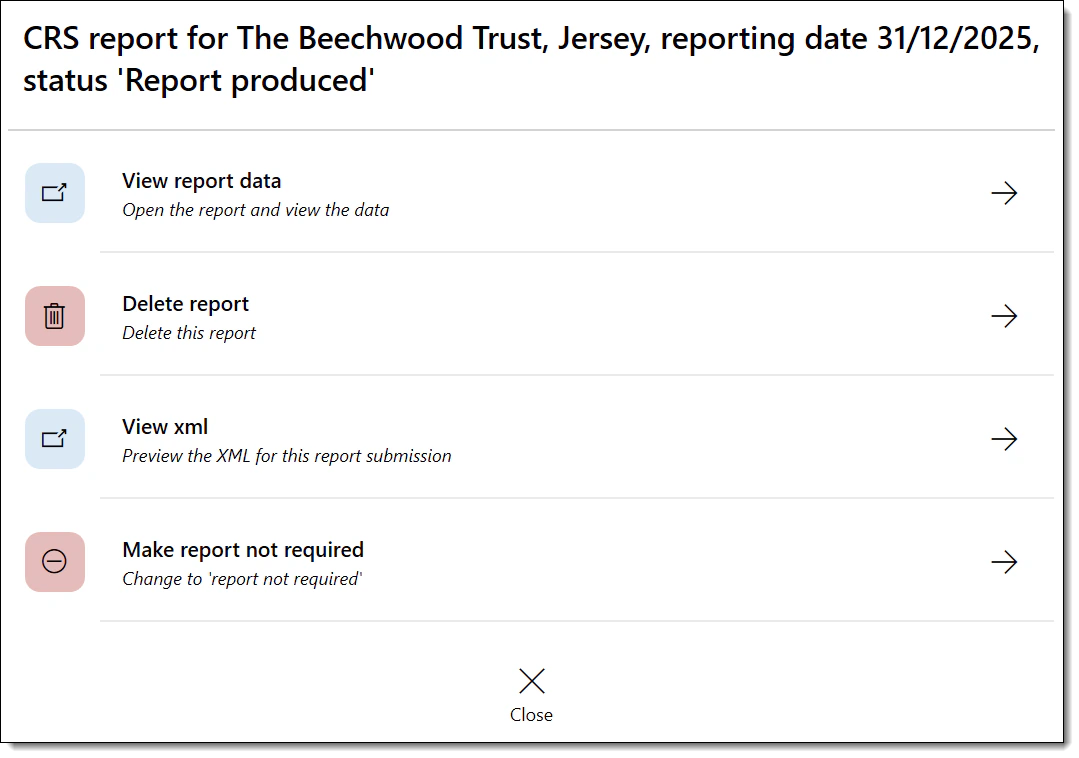
Reporting FI Section
This section contains the details of the Reporting Financial Institution – the entity that is filing the report. It includes the entity name, address, TIN, and FATCA/CRS classification. If your company acts as a Sponsor for a sponsored entity, you can edit the Reporting FI and Sponsor details using the Edit Reporting FI/Sponsor action.
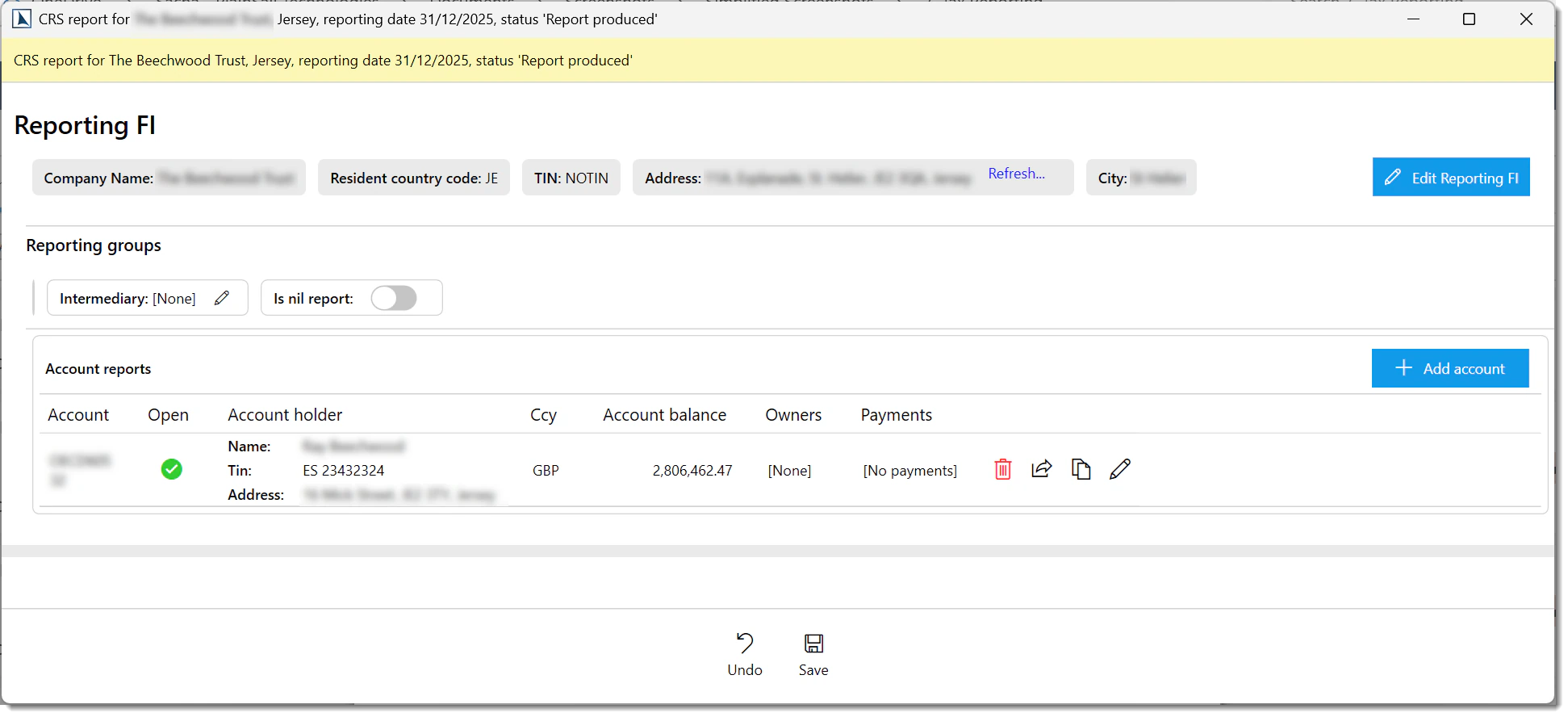
Reporting Group & Account Reports
Below the Reporting FI section is the Reporting Group, which contains one or more Account Reports. Each Account Report represents a single reportable account (typically a relationship with a natural person or entity). An Account Report has four sections:
- Account Details – the account number, account type, currency, and balance or value.
- Account Holder – the name, address, TIN, and jurisdiction of the account holder.
- Owners (Controlling Persons) – the natural persons who own or control the account holder, including their names, addresses, TINs, and ownership percentages.
- Payments – the payment amounts broken down by category (Dividends, Interest, Proceeds & Redemptions, Other).
You can Add new Account Reports or Edit existing ones. When editing, you can modify any of the four sections. Changes made in the editor are tracked in the audit log.
Nil Reports (FATCA Only)
If an entity has a FATCA reporting obligation but has no reportable accounts for the period, you can create a Nil Report. A Nil Report is a valid FATCA filing that confirms the entity has no accounts to report. This option is available from the Create Nil Report action in the Report Editor. Note that CRS does not require nil reporting – simply do not submit a report for the entity.
Submitting Reports
Reports that have been approved are available for submission from the Ready to Submit tab on the Tax Reports screen.
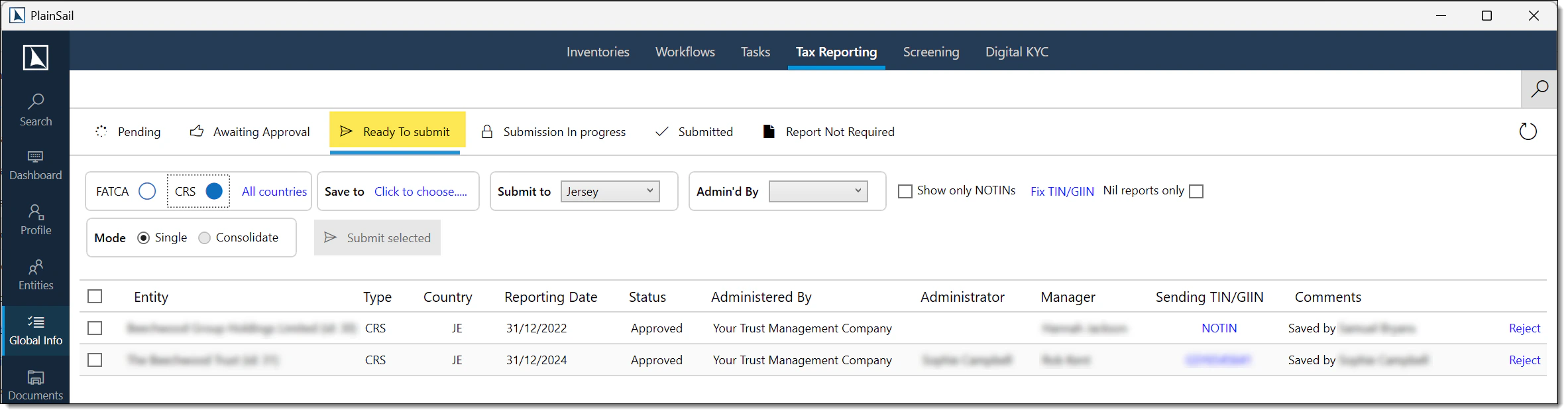
Choosing Report Type
The Ready to Submit tab separates reports by regime. Use the FATCA or CRS filter to view only the reports for the regime you wish to submit.
Single vs Consolidated XML
When you select reports for submission, you have two output options:
- Single XML – generates one XML file per report. Use this when each entity files separately or when you need to submit reports individually.
- Consolidated XML – combines multiple reports into a single XML file. Use this when your jurisdiction accepts (or requires) a single filing covering multiple entities.
Output Folder & File Naming
Before generating the XML, specify the output folder where the files should be saved. PlainSail names the output files according to a consistent convention that includes the regime (FATCA/CRS), jurisdiction, reporting period, and entity identifier. This ensures files are easy to locate and distinguish.
Use the output location agreed by your organisation. Contact your administrator if you cannot save files there.
XML Validation Errors
When generating the XML output, the system validates the data against the applicable FATCA or CRS XML schema. If validation fails, the following common errors may be reported:
| Error | Cause | Fix |
|---|---|---|
| Invalid TIN | TIN format does not match the jurisdiction’s expected pattern. | Correct the TIN on the entity or relationship record. |
| Missing mandatory field | A required XML element is empty. | Complete the missing data on the entity or report record. |
| Invalid country code | An ISO country code is incorrect or missing. | Update the entity’s jurisdiction or country field. |
| Schema validation failure | The XML structure does not match the expected FATCA/CRS schema version. | Ensure the report configuration uses the correct schema version. |
| Duplicate MessageRefId | The message reference ID has already been used in a previous submission. | Generate a new message reference (automatic on retry). |
Amending Submitted Reports
After a report has been submitted, you may need to make corrections – for example, if a TIN was recorded incorrectly or a payment amount was misstated. PlainSail supports two amendment message types:
- Correction – replaces previously submitted data with corrected data. The corrected report is submitted as an amendment filing, referencing the original submission.
- Void – cancels a previously submitted report entirely. This is used when a report should not have been filed at all (e.g., the entity was incorrectly classified as reportable).
The Unsubmit Option
If you need to amend a submitted report, first use the Unsubmit action on the Tax Reports screen. This returns the report to the Approved status, allowing you to open it in the Report Editor and make changes. Once amended, the report must go through the verification and approval steps again before being resubmitted with the appropriate amendment message type (Correction or Void).
Handling Rejected Reports
When a report is rejected by the receiving tax authority, the report status changes to Rejected in the Submissions screen and a rejection reason is recorded (if provided by the authority). To fix and resubmit a rejected report:
Navigate to Global Info › Tax Reporting › Submissions and locate the rejected report.
Click Amend to create a corrective report record.
Fix the underlying data issues (e.g. add missing TINs, correct addresses) on the entity or relationship records.
Regenerate the XML and resubmit.
TaxReport_AmendDataAfterSubmission permission to amend a previously submitted or rejected report.
Archiving & Retaining Reports
Submitted reports cannot be deleted from the user interface. Reports in draft status can be deleted from the Submissions screen. Follow your organisation’s retention policy and contact your administrator for archiving guidance.
End-to-End Example
The following worked example illustrates the complete tax reporting process using a realistic scenario.
The Maxton Trust Scenario
Roger Maxton is a UK-resident individual of US origin. He established the Maxton Trust in Jersey as a discretionary trust. Roger is the Settlor. The trust has two beneficiaries: his daughter Diana Maxton, resident in New York, and his son Charles Maxton, resident in Madrid. The trust also has a Protector, Luigi Fontana, resident in Italy.
The Maxton Trust wholly owns Maxton Investments Ltd, a Jersey-incorporated investment holding company. Maxton Investments Ltd in turn holds a 40% interest in Electricals Ltd, a UK trading company.
Step 1 – Entity & Relationship Setup
Ensure that all entities are recorded in PlainSail's Entity Management module:
- Maxton Trust – entity type: Trust.
- Maxton Investments Ltd – entity type: Company, with a relationship of type "Owner" linking it to the Maxton Trust (100% ownership).
- Electricals Ltd – entity type: Company, with a relationship of type "Owner" linking it to Maxton Investments Ltd (40% ownership).
Record the following relationships on the Maxton Trust:
- Roger Maxton – Settlor (Ownership relationship).
- Diana Maxton – Beneficiary (Other relationship).
- Charles Maxton – Beneficiary (Other relationship).
- Luigi Fontana – Protector (Other relationship).
Ensure each natural person has a complete record including name, address, date of birth, jurisdiction of residence, and TIN(s).
Step 2 – Tax Categories
Assign tax classifications to each entity:
- Maxton Trust – FATCA Category: Sponsored Investment Entity; FATCA Subcategory: Sponsored Closely Held Investment Vehicle; CRS Status: Passive NFE.
- Maxton Investments Ltd – FATCA Category: Sponsored Investment Entity; CRS Status: Passive NFE.
- Electricals Ltd – FATCA Category: Active NFFE; CRS Status: Active NFE (not reportable under either regime).
- Your Company (the trust administrator) – ensure your company's FATCA Category and CRS Status are also configured, as it will appear as the Reporting FI or Sponsor.
Step 3 – Tax Reporting Obligations
Record obligations for the Maxton Trust:
- FATCA obligation: TIN (the trust's EIN or GIIN), jurisdiction (United States), Start Date (the date the trust became reportable, e.g., 1 January 2020), Reportable: Yes.
- CRS obligation: TIN (the trust's local TIN), jurisdiction (Jersey), Start Date (1 January 2020), Reportable: Yes.
Record obligations for Maxton Investments Ltd similarly, if it has its own reporting obligations.
Step 4 – Create Report Records
Navigate to Tax Reports and click Refresh. The system scans all entities and creates report records for the current reporting period. You should see new records for the Maxton Trust (both FATCA and CRS), and for Maxton Investments Ltd if it has obligations.
Step 5 – Produce and Review the FATCA Report
Select the Maxton Trust FATCA report record (status: New) and click Create Report. The system generates the report and populates it with data. Open the report in the Report Editor:
- Reporting FI / Sponsor – your company appears as the Sponsor, because the Maxton Trust is a Sponsored Investment Entity.
- Account Report – Diana Maxton appears as the account holder, because she is a US person (resident in New York) who is a beneficiary of the trust. The report includes her name, address, TIN, and any payment amounts sourced from the configured payment ledgers.
Roger Maxton, despite being of US origin, is UK-resident and his reporting treatment depends on his specific tax status. Charles Maxton (Madrid) and Luigi Fontana (Italy) are not US persons and therefore do not appear on the FATCA report.
Step 6 – Produce and Review the CRS Report
Select the Maxton Trust CRS report record and click Create Report. The CRS report is broader in scope:
- Roger Maxton – appears as a controlling person (Settlor) because he is tax-resident in the UK, which is a CRS participating jurisdiction.
- Charles Maxton – appears as a reportable person (Beneficiary) because Spain is a CRS participating jurisdiction.
- Luigi Fontana – appears as a reportable person (Protector) because Italy is a CRS participating jurisdiction.
- Diana Maxton – may or may not appear on the CRS report depending on the specific CRS reporting rules for US-resident persons in your jurisdiction.
Step 7 – Verify, Approve, and Submit
Walk each report through the remaining workflow steps: verify the data, have a manager approve it, then generate the XML and upload it to the appropriate portal. The entire process is logged in the audit trail, providing a complete record of who did what and when.
Permissions Reference
The following table summarises every permission role used by the Tax Reporting module. Assign roles to user groups via Admin → User Groups.
| Permission | Capability |
|---|---|
Entities_TaxReporting_View | View the tax reporting tab on entities and see existing report data (read-only). |
TaxReport_Administer | Full administrative access – configuration of global settings, relationships, ledgers, and classifications. |
TaxReport_StartManual | Manually trigger creation of new report records (the Refresh action). |
TaxReport_VerifyData | Open a produced report, review data, and mark it as verified. |
TaxReport_ApproveData | Approve a verified report, advancing it to submission-ready status. |
Entities_AmendDataBeforeSubmission | Edit report data after production but before submission. |
Entities_AmendDataAfterSubmission | Edit report data after submission, triggering the amendment workflow. |
TaxReport_VerifyData and TaxReport_ApproveData to different user groups to enforce four-eyes control over the reporting process.
Keyboard Shortcuts
The following keyboard shortcuts are available within the Tax Reporting module:
| Shortcut | Context | Action |
|---|---|---|
| F5 | Tax reporting list | Refresh the report list. |
| Escape | Report editor | Close the current dialogue or panel (not the editor itself). |
FAQ
What does it mean when a report shows warnings?
A status of ReportWarnings indicates that the system detected data quality issues during report generation – for example, a missing TIN, an incomplete address, or an unrecognised jurisdiction code. Open the report in the Report Editor and review the highlighted fields. You can resolve the warnings by correcting the underlying data (on the entity or relationship record) and regenerating the report, or by editing the data directly in the Report Editor.
Can I edit a report after it has been submitted?
Yes, but you must first use the Unsubmit action to return the report to the Approved status. You can then make changes in the Report Editor, re-verify, re-approve, and resubmit with a Correction or Void message type. You will need the Entities_AmendDataAfterSubmission permission to do this.
What happens to wholly-owned subsidiaries?
A wholly-owned subsidiary of a trust or other entity may be reported through its parent's report if the subsidiary is a sponsored entity. The parent acts as the sponsor, and the subsidiary's account holders are included in the parent's filing. The exact treatment depends on the FATCA Category and CRS Status assigned to the subsidiary. If the subsidiary has its own reporting obligations, it will have its own report records.
Why isn't a person appearing on a report?
There are several possible reasons: (1) The relationship between the person and the entity is not classified as an Ownership or Other relationship in the tax reporting configuration. (2) The person's jurisdiction of residence is not a participating jurisdiction under the relevant regime. (3) The entity's tax reporting obligation Start Date post-dates the reporting period. (4) The entity or the person is missing a required field (e.g., TIN or address). Check each of these areas systematically.
Can I consolidate FATCA and CRS reports into a single XML file?
No. FATCA and CRS are separate reporting regimes with different XML schemas. You must generate and submit FATCA and CRS files separately, even if they relate to the same entities and reporting period.
What should I do if a TIN is unknown?
If a reportable person's TIN is genuinely unavailable, you can proceed with the report and the system will include an appropriate "no TIN" indicator in the XML output. However, many jurisdictions require a reasonable explanation for the absence of a TIN. Document the reason in the entity or relationship record, and check whether your jurisdiction permits the use of a date-of-birth substitute. Consult your compliance team for jurisdiction-specific guidance.
Do I need to configure my own company for tax reporting?
Yes. Your company appears as the Reporting Financial Institution (or Sponsor) on every report you produce. It must have a valid FATCA Category, FATCA Subcategory, CRS Status, TIN, and address configured. If these details are missing, the system cannot populate the Reporting FI section of the report and report generation will fail.
What is the difference between Ownership and Other relationships?
Ownership relationships (Owner, Beneficial Owner, UBO, Settlor) represent a direct or indirect financial interest in the entity. These persons are reported as controlling persons or account holders. Other relationships (Beneficiary, Protector, Trustee) represent a connection that does not involve ownership but is still reportable under FATCA/CRS. The distinction affects how the person appears in the report – ownership relationships typically determine the account holder, while other relationships appear as additional reportable persons.
How far back can I generate reports?
You can generate reports for any historical period, provided the entity had a valid tax reporting obligation with a Start Date that predates the reporting period end date. There is no system-imposed limit on how far back you can report – however, the accuracy of historical reports depends on the availability of bookkeeping data and relationship records for the relevant period.
What if I need to file a nil return for CRS?
CRS does not typically require nil reports. If an entity has no reportable accounts for a CRS period, you simply do not submit a report. Use the Make Not Required action on the report record to indicate that no filing is needed. For FATCA, nil reports are supported – use the Create Nil Report option in the Report Editor.
What do I do when the XML validation fails?
Review the validation errors displayed in the report editor. Each error identifies the affected entity and the specific field that failed validation. Fix the underlying data on the entity or relationship record and regenerate the XML. Refer to the XML Validation Errors table in the Submitting Reports section for a list of common errors and their fixes.
How do I report for an entity in multiple jurisdictions?
Each jurisdiction requires a separate report record with its own obligation configuration and submission. Create a distinct obligation for every reporting jurisdiction under Global Info › Tax Reporting › Obligations, then generate and submit each jurisdiction’s report individually. See Multi-Jurisdiction Reporting for details.
Where are submitted XML files stored?
Submitted XML files are saved to the agreed output folder (see Output Folder & File Naming). To download a previously submitted XML file, open the Submitted screen and select the report.
- Entities & Client View – entity tax categories and relationship configuration
- Accounting – payment ledger mapping and financial data used in reports
- Global Info & Compliance – cross-entity tax reporting views and obligations
Test Yourself
Test your FATCA/CRS knowledge with these 10 questions covering the reporting pipeline, statuses, classifications, and submission process.