Help Centre
Accounting
Full double-entry accounting – chart of accounts, transaction batches, supplier invoices and payments, trial balance, bank reconciliation, rate conversions, FX revaluation, year-end closure, financial statements, group consolidation, fixed asset depreciation, valuations, report builder, scenarios, exchange rates, investments, invoice layout, and reporting.
Key points
- All accounting entries go through transaction batches with a full lifecycle (In Progress → Posted)
- Account plans control which subset of the chart of accounts each entity uses
- Supplier invoices record what you owe; approval, payment and bank reconciliation are separate steps
- Bank reconciliation matches imported statements against posted transactions automatically
- Year-end closure locks previous periods and transfers P&L to the balance sheet
- Scenarios are reusable transaction templates for repetitive journal entries
- Supports multi-currency with automatic FX revaluation and cross-rate calculation
- Fixed asset depreciation runs, memorandum valuations, and group consolidation are built into the module
Overview
The Bookkeeping and Accounting module provides a full double-entry accounting system for managing the financial records of entities (companies, trusts, foundations, partnerships, etc.) within PlainSail. It covers journal entry, transaction batches, chart of accounts management, trial balance reporting, bank reconciliation, investment portfolios, exchange rates, year-end closures, and financial statement production.
Key concepts
- Ledger (Account) – a named account in the chart of accounts, identified by a unique numeric code. Each ledger belongs to an account type group (e.g. Assets, Liabilities, Revenue, Expenses).
- Transaction – a single debit or credit entry posted against a ledger for a specific entity, with a value date and amount.
- Transaction Batch – a container for one or more transactions. Batches go through a lifecycle (In Progress → Posted/Cancelled) and are the mechanism through which all accounting entries enter the live ledger.
- Account Plan – a named subset of ledger accounts that can be assigned to an entity. Different entities can use different subsets of the chart of accounts.
- Trial Balance – a report showing all ledger balances for an entity at a point in time, confirming that debits equal credits.
- Scenario – a reusable template of transactions that can be applied to speed up repetitive journal entries.
- Subledger – a detail-level breakdown within a ledger account (e.g. individual bank accounts within a "Bank Accounts" ledger, or individual investments within a "Portfolio" ledger).
- Year-End Closure – closing a financial year: generating closing entries for P&L accounts, posting them, and locking the period.
Navigation
The Bookkeeping area is accessed from the main navigation ribbon under Bookkeeping. Entity-specific accounting (trial balance, batches, bank reconciliation) is also accessible from the Accounting tab when viewing an entity in the Client View.
Chart of Accounts
The chart of accounts is the master list of all ledger accounts available in the system. Every transaction references a ledger account. The chart is shared across all entities, but account plans control which subset of ledgers each entity uses.
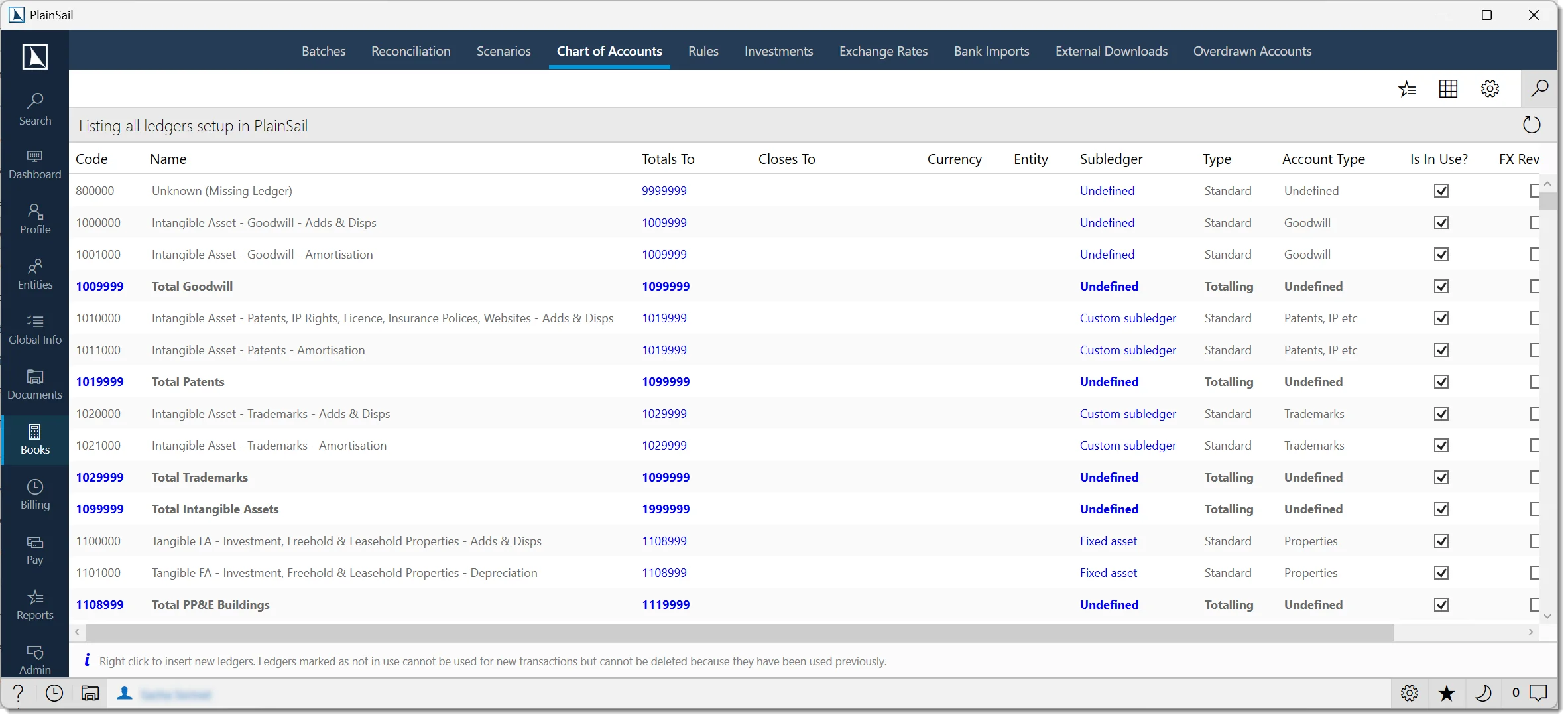
Navigate to Bookkeeping > Chart of Accounts to view and manage ledger accounts.
Bookkeeping_ChartOfAccounts_View to view the chart. Bookkeeping_ChartOfAccounts_Edit to create or edit ledgers. Bookkeeping_ChartOfAccounts_Delete to delete ledgers.
Ledger list columns
- Code – unique numeric identifier. By convention, totalling ledgers end in
99. - Name – descriptive name of the ledger.
- Type – Standard, Totalling, Bank Account, or Investment.
- Account Type – classification (Assets, Liabilities, Revenue, Expenses, etc.).
- Totals To – the totalling ledger this rolls up into.
- Currency – the ledger's currency (blank = base currency).
- In Use – whether the ledger is active.
- Subledger Type – type of subledger detail, if any.
Filtering and grouping
- Search – filter by code, name, or any visible property. Press Escape to restore the full list.
- Group by Totals To – show only ledgers that total to the selected ledger.
- Group by Closes To – show only ledgers whose year-end closing entries flow into the selected ledger.
- Group by Currency – show only ledgers with the same currency.
- Group by Business Entity – show only ledgers assigned to the same entity.
- Group by Subledger Type – show only ledgers with the same subledger detail type.
- F5 – refresh the list from the database.
Creating Ledgers
Select a ledger in the list to establish context (the new ledger's code will be calculated relative to it).
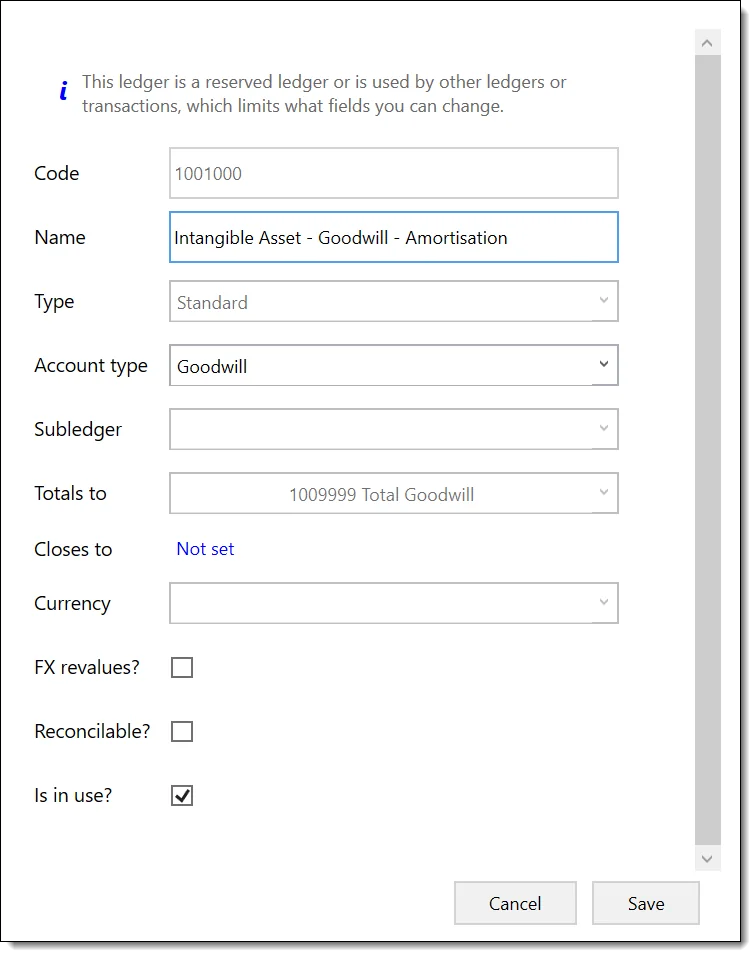
Click Insert Before or Insert After to create a single ledger with an auto-calculated code, or Insert Block 5 / Insert Block 10 to create a block of sequential ledgers.
The ledger editor opens. Complete the fields and click Save.
Ledger editor fields
- Ledger Code (required) – unique numeric code. Must be less than the "Totals To" code. Cannot be changed if the ledger is in use.
- Name (required) – unique name. A warning is shown if a totalling ledger's name does not contain the word "total".
- Ledger Type (required) – Standard (regular posting account), Totalling (subtotal row, no direct postings), Bank Account (for bank account ledgers), or Investment (for portfolio/investment accounts; must use a Portfolio, Quoted Investment, or Unquoted Investment subledger).
- Account Type (required) – classification group (Assets, Liabilities, Revenue, Expenses, Current Assets, Fixed Assets, Turnover, Expenditure, etc.). Totalling ledgers should use "Undefined".
- Totals To – the totalling ledger this rolls up to.
- Currency – if set, the ledger operates in a specific foreign currency. Investment accounts cannot have a currency set.
- Subledger Type – enables a detail breakdown: Any Entity, Bank Account, Custom Subledger, Debt, Fixed Asset, Loan (Borrower), Loan (Lender), Quoted Investment, Unquoted Investment, Portfolio.
- Subledger Optional – if ticked, transactions can be posted with or without a subledger detail.
- Closes To (Credit/Debit) – the ledger(s) to which balances are transferred at year-end. Both must be set together.
- Closes To Overrides – entity-specific overrides for unique closing behaviour.
- FX Revalues – if ticked, participates in foreign exchange revaluation. Must be Standard or Bank Account type, and must not close down.
- Is Reconcilable – if ticked, the ledger can be used in bank reconciliation. Totalling ledgers cannot be reconcilable.
- In Use (required) – inactive ledgers cannot be used for new transactions.
- Business Entity – optionally ties the ledger to a specific entity (legacy feature).
Editing a ledger
Select the ledger and double-click or click Edit. The editor opens with current values. If the ledger is in use by transactions or rules, certain fields (code, type) may be restricted. The record is locked while being edited – if another user is editing, you'll see a "locked" message.
Ledger editing restrictions
| Field | Restriction |
|---|---|
| Code | Cannot be changed if the ledger has posted transactions. |
| Currency | Cannot be changed if the ledger has posted transactions. |
| Account Type | Can be changed, but warnings appear if the new type is incompatible with existing transactions. |
| Account Plan | Can only be changed by users with the Entities_Accounting_ChangeAccountPlan role. |
| Name | Can be freely edited. |
| Description | Can be freely edited. |
| Is Active | Can be deactivated if no unposted batches reference it. Deactivated ledgers are hidden from selection but retain historical data. |
Deleting a ledger
Select the ledger and click Delete. If the ledger has never been used, it is permanently deleted. If it has been used, it is marked as inactive ("not in use") instead. If other ledgers reference it (via "Totals To" or "Closes To"), update those references first.
Account Types & Plans
Account type groups
Ledger account types classify ledgers for reporting purposes. The system includes predefined groups:
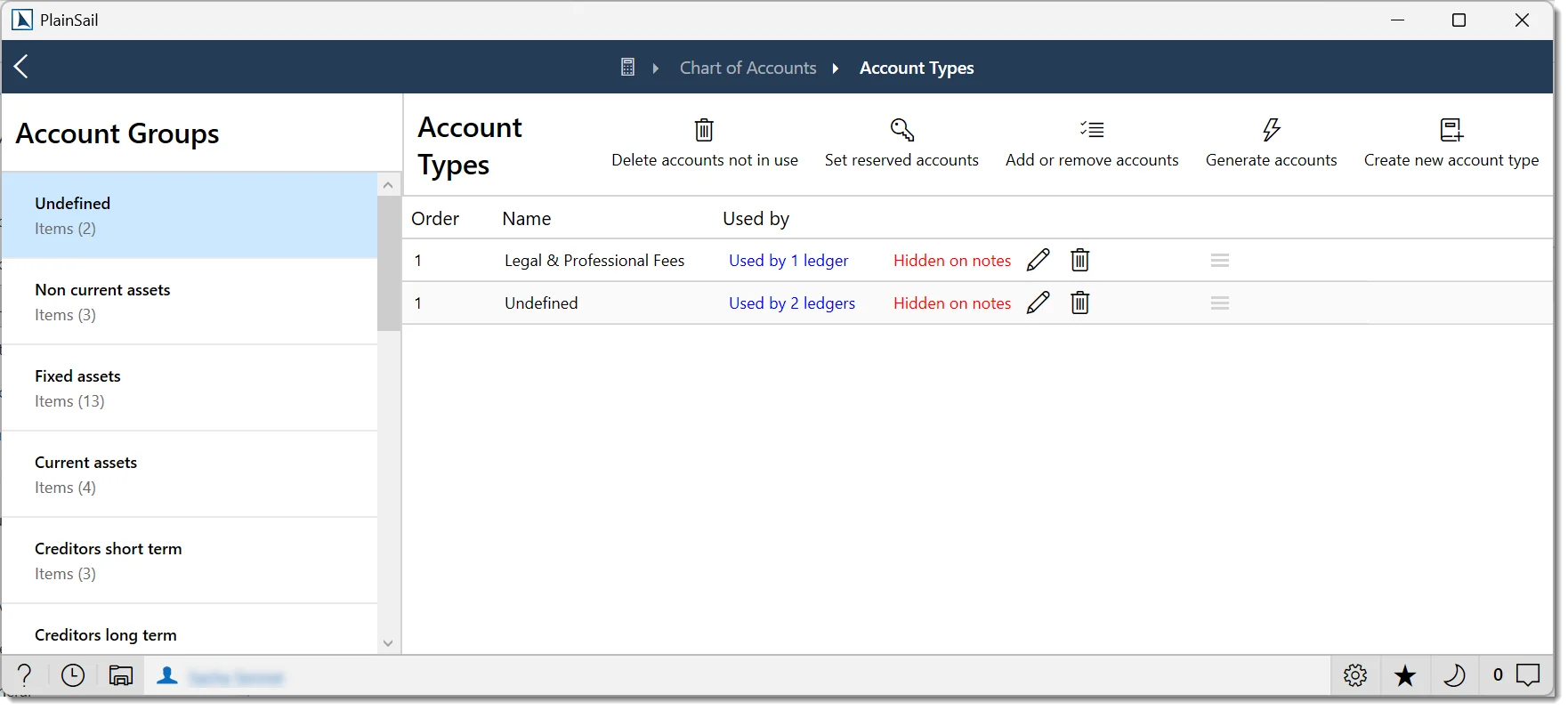
- Assets – general assets
- Non-Current Assets / Fixed Assets – long-term assets, property, plant, equipment
- Current Assets – cash, receivables
- Liabilities – general liabilities
- Creditors (Short Term / Long Term) – payables due within or after one year
- Equity / Capital and Reserves – share capital, retained earnings, accumulated funds
- Revenue / Turnover – sales, fees, income
- Expenses / Expenditure – operating costs
- Taxation – tax provisions
- Trust Income / Capital – trust-specific account types
- Distributions – dividends, beneficiary distributions
Manage account types from the chart of accounts screen by clicking Manage account types.
Account plans
Account plans define which subset of the chart of accounts is available for a particular entity. An entity is assigned an account plan, and only ledgers in that plan appear when posting transactions.
Navigate to Bookkeeping > Account Plans (or click Manage account plans on the chart of accounts screen).
Bookkeeping_ChartOfAccounts_AccountPlans_ViewEditDelete
- Create – click Add new, enter a name, and save.
- Edit – click the edit button on an account plan row.
- Delete – if the plan is in use by entities, it is marked as "not in use" instead of being deleted.
- View users – click Show used by to see which entities use the selected plan.
- Refresh – click the refresh button to reload the list.
Transaction Batches
All accounting entries are created within transaction batches. A batch is a container that holds one or more journal transactions and goes through a lifecycle before posting to the live ledger.
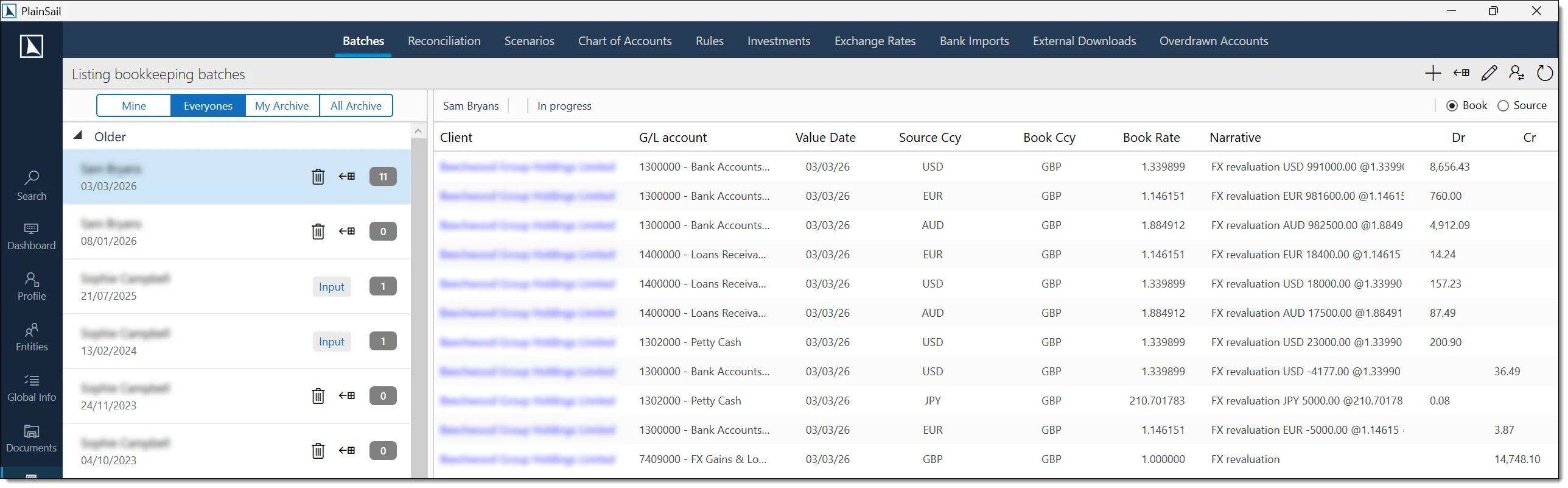
Batch lifecycle
- In Progress – actively being edited. Transactions can be added, modified, or removed.
- On Hold – paused. No further edits until moved back to In Progress.
- Waiting for Authorisation – submitted for approval by another user.
- Rejected by Authoriser – approver has rejected; returns to an editable state.
- Requires Repair – encountered an issue during posting; needs manual intervention.
- Ready to Import – validated and ready to be posted.
- Imported (Posted) – transactions posted to the live ledger. This is final.
- Request to Cancel – cancellation requested.
- Cancelled – cancelled. This is final.
- Reversed – a new batch with opposite entries was posted.
The batch list
Navigate to Bookkeeping > Batches. Batches are grouped by date and filtered by tab:
- My Active – your own in-progress, on-hold, awaiting-authorisation, rejected, or requiring-repair batches.
- All Active – all users' active batches (requires Administrator role).
- My Archive – your completed, cancelled, or ready-for-import batches.
- All Archive – all users' archived batches (requires Administrator role).
Bookkeeping_MyBatches_View to see your own batches. Administrator role for all-users views (All Active / All Archive tabs).
Each batch shows: Batch ID, description, status, entity name, creator, creation date, and a lock indicator if another user has it open.
Creating a new batch
Press Ctrl+N or click New Batch. The Batch Editor opens with a blank batch (status "In Progress", type "Manual Journal").
Entities_Accounting_PostJournal
The Batch Editor
The batch editor is a dedicated window with three main areas:
Batch details panel (top)
- Batch ID – auto-assigned identifier.
- Status – current lifecycle status.
- Description – optional description of the batch's purpose.
- Auto-reverse in one day – if ticked, the system posts a reversing batch one day after each transaction's value date. A confirmation prompt appears when posting.
- Keep posting – if ticked, after posting, a new empty batch opens automatically so you can continue entering transactions.
Transaction entry area (centre)
Each transaction requires:
- Entity – the entity this transaction relates to. Start typing to search. Pre-filled if opened from an entity's accounting tab.
- Ledger – the ledger account. Only ledgers in the entity's account plan are shown.
- Subledger Detail – if the ledger has a subledger type, select the specific detail (bank account, investment, etc.).
- Value Date – the date the transaction takes effect.
- Narrative – text description. Auto-complete suggests narratives used previously in this batch.
- Source Amount – positive = debit; negative = credit.
- Source Currency – defaults to the entity's base currency.
- Exchange Rate – if the source currency differs from base, the conversion rate.
- Base Amount – calculated from source amount × exchange rate.
- Invoice ID – optional reference. Auto-complete suggests invoice IDs used previously.
- Opposite Transaction – automatically generates a contra entry to balance. Can be hidden via the Hide Opposite toggle.
Press Enter or click Add to add the transaction. The input area clears for the next entry. If Keep Last Input is enabled, entity, ledger, and date are retained.
Click a transaction in the list to edit it, modify values, and click Save. Press Escape to cancel and return to new-entry mode.
Transaction list (bottom)
Displays all transactions in the current batch with: entity, ledger, value date, narrative, debit/credit amounts, currency, invoice ID, and running totals showing the batch balance.
Editor options
- Hide Opposite – hides opposite transaction entry fields for a cleaner interface.
- Keep Last Input – retains entity, ledger, date, and currency from the previous transaction.
- Quick Tab – pressing Tab skips optional fields for faster data entry.
- Select Invoice is Tab Stop – includes the invoice selector in the Tab order.
All options are saved per user and persist across sessions.
Transaction actions
- Copy to New Batch – copies selected transactions to a new batch. Originals remain.
- Move to New Batch – moves selected transactions to a new batch. They are removed from the current batch.
- Import to New Batch – copies to a new batch and immediately posts (imports) it.
- Create Scenario – creates a reusable scenario template from selected transactions.
- Apply Scenario – applies a saved scenario to generate transactions based on a template.
- Split Transaction – splits a single transaction into two, redistributing the amount.
- View Posted Transactions – opens a read-only list of all posted transactions for the selected entity and ledger, for reference while entering new ones.
Posting & Approval
Posting a batch
Click Post (or use "Send for Import" in the batch details panel).
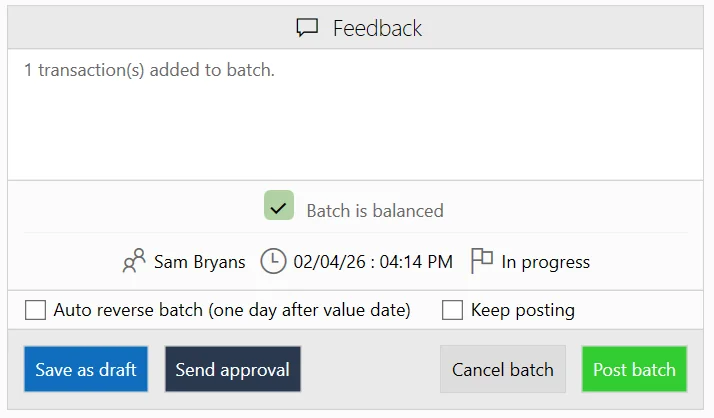
Confirm the prompt: "Post this batch?" If Auto-reverse is enabled, an additional confirmation appears.
The system validates (all transactions must be valid, at least one must exist, no unsaved edits). If validation passes, the batch is posted and status changes to Imported.
If Keep posting is enabled, a new empty batch opens automatically.
Batch approval workflow
Click Send for Approval. Select an approving user and enter an optional reason.
The batch status changes to Waiting for Authorisation and the approver is notified.
The approver reviews and either Approves or Rejects (with a reason). Rejected batches return to an editable state.
Other batch actions
- Place on Hold – pauses the batch. If it has no transactions, it will be deleted.
- Cancel Batch – requests cancellation with a confirmation prompt.
- Reassign – changes the primary entity shown on the batch list (does not affect individual transaction entities within the batch).
Batch locking
When a batch is opened for editing, it is locked to prevent concurrent edits. If another user has it locked, a message shows who. Locks are released when the editor window is closed. If a batch is closed with zero transactions, it is automatically deleted.
Reversing a posted batch
Navigate to the entity’s Accounting tab > Batches.
Select the posted batch to reverse.
Click Reverse (or right-click > Reverse Batch).
A confirmation prompt appears: “Are you sure you wish to reverse this batch?” Confirm.
The system creates a new contra batch with all debit/credit entries swapped. The original batch’s status changes to Reversed and the contra batch is posted automatically.
Entities_Accounting_ReverseBatch
Multi-entity batches
A single batch can contain transactions for multiple entities. Each transaction row in the batch editor has its own Entity field, so you can post debits and credits across different entities within one batch.
The batch list displays a primary entity name for reference, but this does not restrict which entities can appear in the batch’s transactions.
Entity Accounting Dashboard
When viewing an entity in the Client View, the Accounting tab provides a dashboard summarising the entity's financial position.
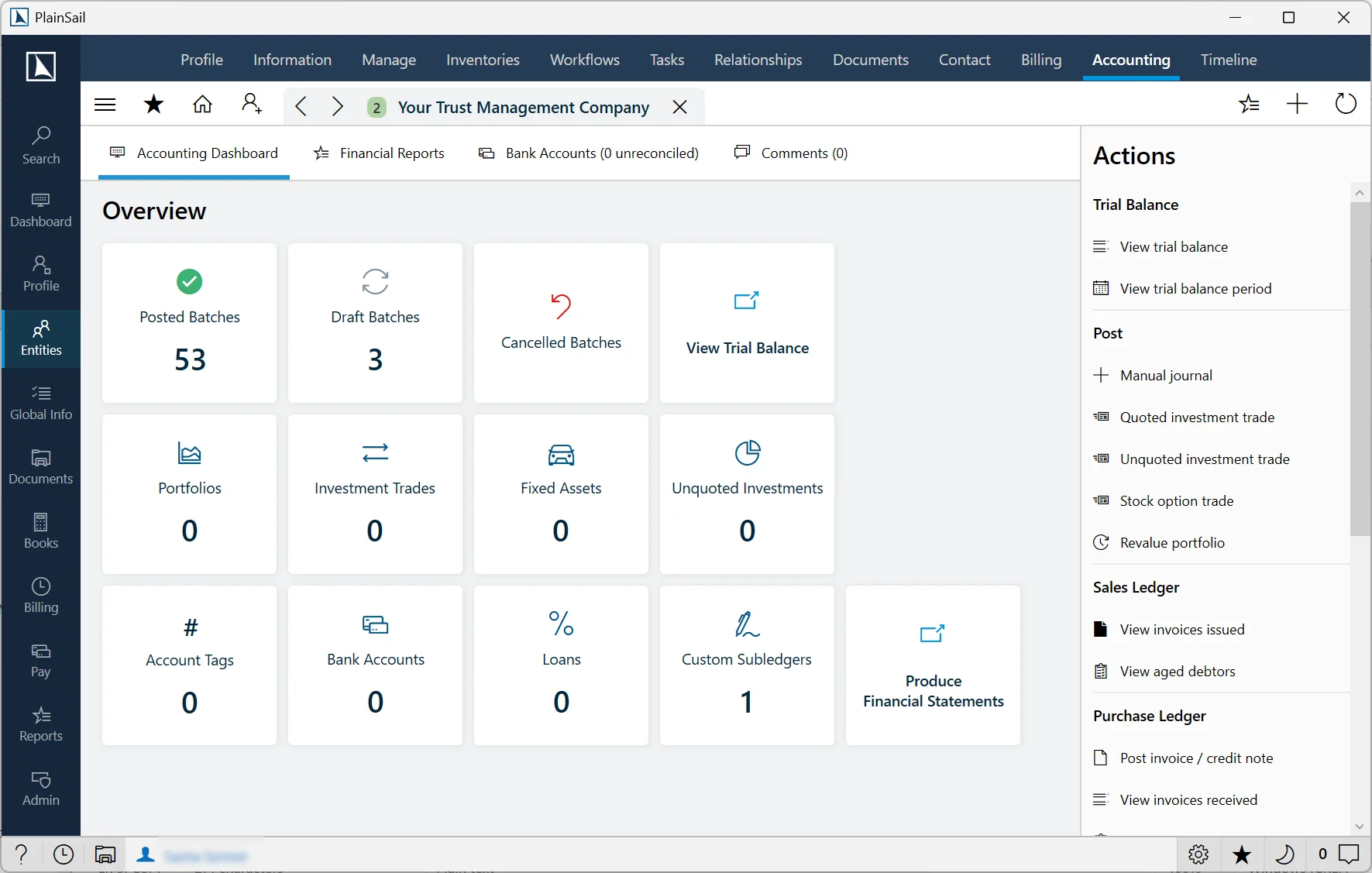
Dashboard sections
- Dashboard – overview tiles showing statistics (draft/completed/cancelled batches), navigation links, and summary information.
- Bank Accounts – all bank accounts with current balances and bank logos. Accounts with pending reconciliation items show a reconcile badge.
- Reports – all available accounting reports (SSRS and internal).
- Notes – a notes panel for recording bookkeeping notes against the entity.
Dashboard actions
- View Draft/Completed/Cancelled Batches – opens popouts showing filtered batch lists for this entity.
- View Trial Balance – navigates to the entity's trial balance. Requires
Entities_Accounting_ViewTrialBalance. - View Loans / Debts / Bank Accounts / Portfolios / Fixed Assets / Unquoted Investments / Custom Sub-Ledgers – navigate to the relevant entity data.
- View Investment Trades – opens a popout showing all investment trades.
- View Account Tags – opens the ledger tag editor.
- Produce Financial Statements – opens the financial statements production wizard.
- Reconcile – on a bank account tile, opens bank reconciliation. Requires
Entities_Accounting_ReconcileBankAccount. - Reconcile Portfolio – opens investment transaction import/reconciliation.
- Open Report – run an accounting report. Requires
Entities_Accounting_ViewAccountingReports.
Ledger tags
Ledger tags are personal shortcuts (starting with #) that map to a specific ledger account and optional subledger detail for a specific entity. They speed up transaction entry by allowing you to type a tag name instead of searching for the ledger.
From the accounting dashboard, click View Account Tags, then add, edit, or remove tags and save. Tags can also be created directly from the batch editor by clicking the "create tag" button next to the ledger field.
Trial Balance
The trial balance shows all ledger account balances for an entity at a specific point in time, confirming that total debits equal total credits. Navigate from the entity's Accounting tab by clicking View Trial Balance.
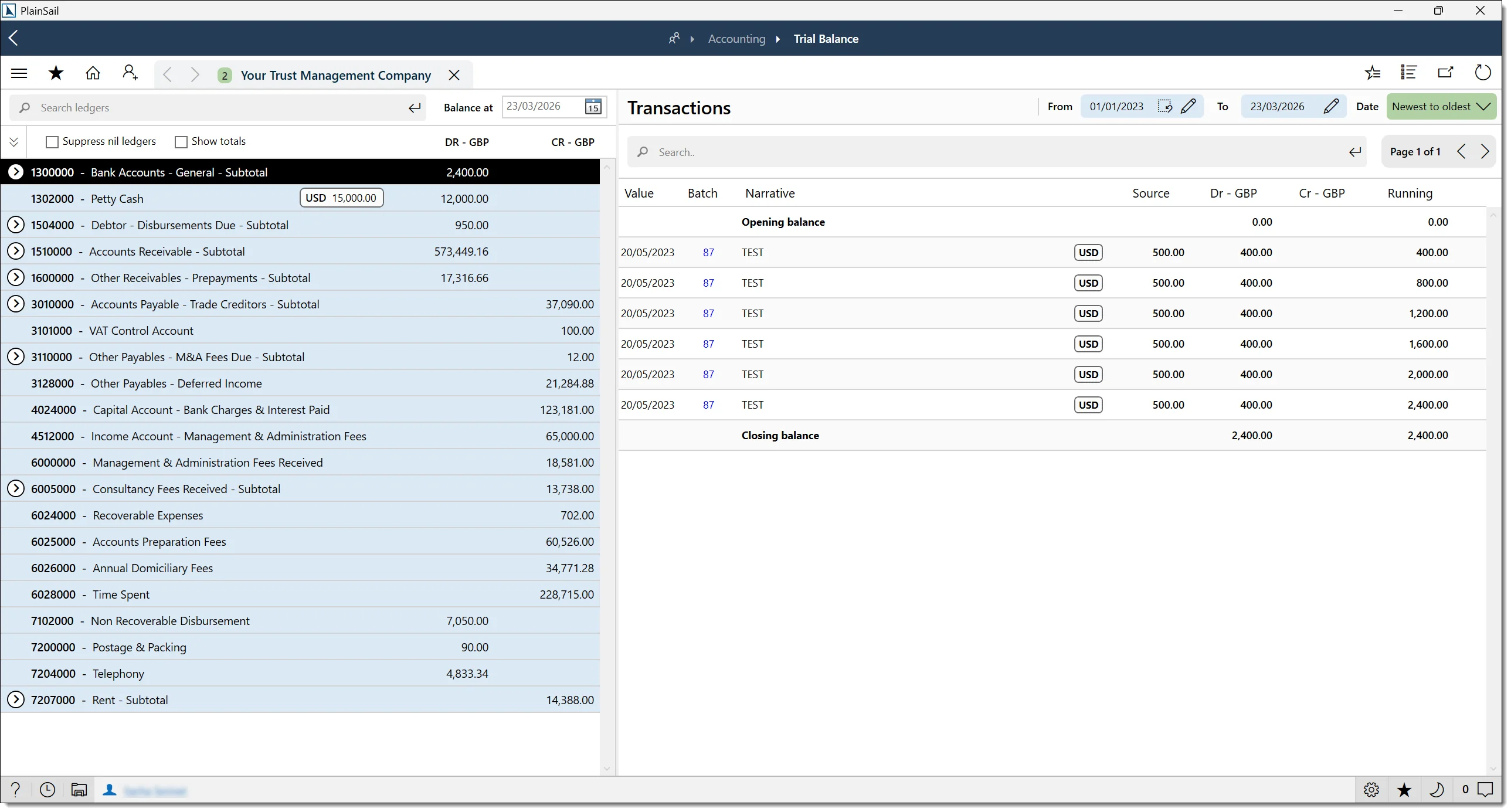
Entities_Accounting_ViewTrialBalance
Display
- Each ledger account with code, name, and balance (debit or credit column).
- Totalling ledgers showing subtotals for their group.
- Balances in both base currency and source currency (for foreign-currency ledgers).
- Drill into individual ledger accounts to see the underlying transactions.
Actions
- New Batch – open a new batch pre-populated with the current entity.
- Perform FX Revaluation – generate FX revaluation entries for all ledgers marked as FX-revaluing.
- Filter by date – view balances at different points in time.
- Drill into ledger – click a row to see all transactions posted to that account.
Transaction audit trail
To trace a posted entry back to its batch:
From the Trial Balance, drill down on a ledger account to see individual transactions.
Each transaction shows the batch reference (batch number and name).
Click the batch reference to open the original batch.
The batch shows:
- Who created it.
- When it was created.
- When it was posted.
- All transaction lines.
- Whether it has been reversed.
Subledger reconciliation
Subledgers are detailed ledgers that support a control account (e.g. individual debtor balances supporting the total debtors control account).
Run the Trial Balance for the entity.
Compare the control account balance with the sum of subledger balances.
If they match, the subledger is reconciled.
If they don’t match, investigate:
- Transactions posted to the control account without a subledger entry.
- Subledger entries that bypass the control account.
Supplier Invoices & Payments
Record a supplier invoice, approve it, pay the supplier and match the bank payment. The purchase ledger (accounts payable or creditors) records what you owe. This section covers supplier invoices only.
- 1. EnterAdd details, lines and the document.
- 2. ApproveIf required by your role or firm’s policy. Nothing posted yet.
- 3. PostRecord the cost and amount owed. No payment yet.
- 4. SettlePay the supplier or record a settlement.
- 5. Match bank paymentIf money moved, match the statement to the recorded payment.
Enter a supplier invoice
You need: a supplier entity in the Supplier group, the paying entity’s account plan, an open posting period and any foreign-currency rate for the invoice date. Bank details can wait until payment.
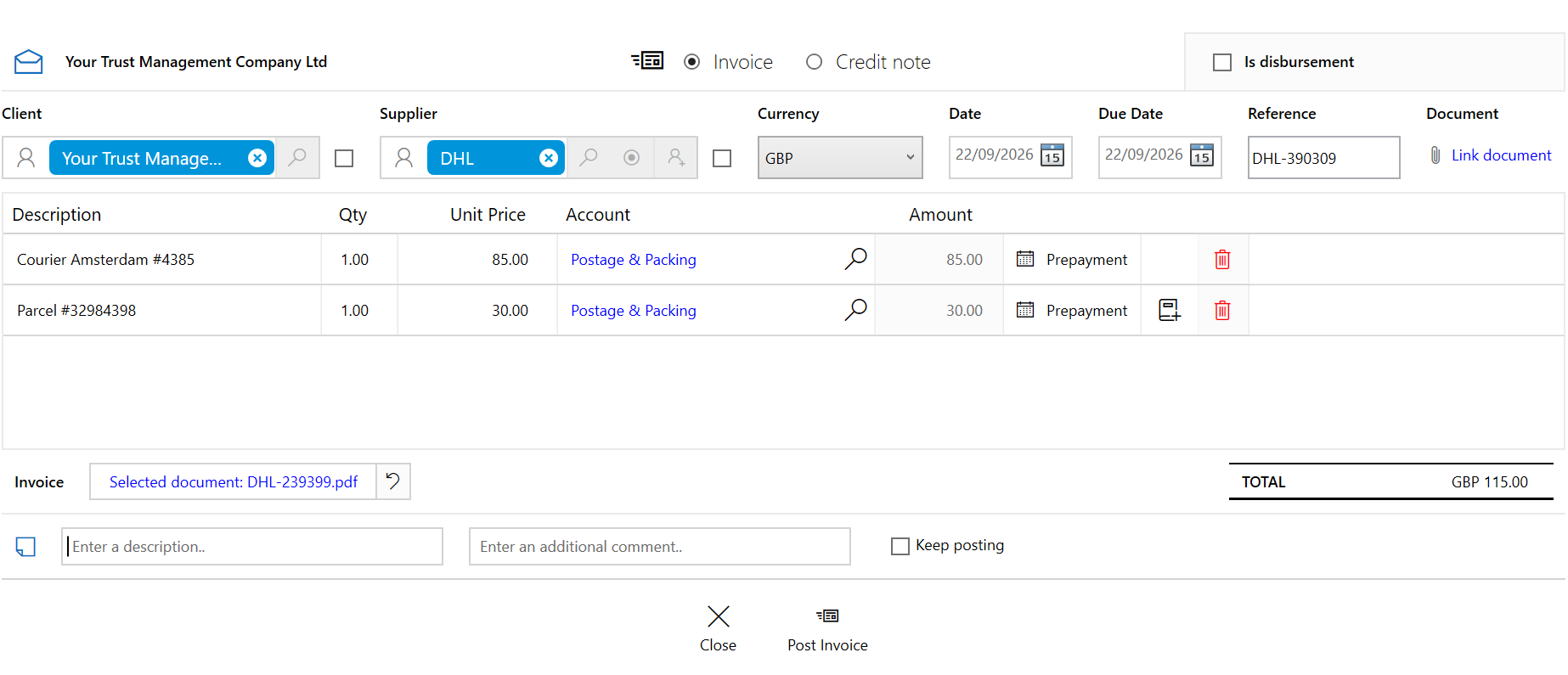
Open the invoice screen. On the paying entity’s Accounting tab, go to Actions > Record > Purchase invoice > Post.
Select Invoice, Supplier and Client. The supplier sent the invoice; the client is the entity whose books the cost belongs to, usually your firm. One must be the entity whose books you opened.
Copy the invoice details. Enter the reference, date, currency, due date and description, plus any internal comment. The description appears on the purchase ledger.
Attach the invoice. Choose Link document after selecting the client. The picker shows that client’s documents; the attachment stays with the postings.
Add the lines. Enter a description, quantity, unit price, account and any required subledger detail. A new line copies the previous account, so check it. For client costs, follow Recharge client costs before submitting.
Review and submit. Compare the details and total with the attachment. Choose Post Invoice if authorised, or Send for Approval.
Field rules and prepayments
- Reference: stored in upper case and unique per supplier. Confirm it if you change the supplier.
- Date: also the posting date; it must fall outside closed or locked periods.
- Currency: defaults to the client’s book currency. Changing it clears currency-specific line accounts; select them again.
- Lines: select supplier and client before choosing accounts. Quantity multiplied by unit price gives the amount; either blank makes it zero. The Unknown account is not allowed.
- Attachment: open the selected document link to review it, or clear it to choose another.
- Prepayments: for a cost covering several months, choose the line’s prepayment option and enter the prepayment account and start/end dates. The amount is posted to prepayments and released to expenses over those months.
Recharge client costs (disbursements)
A disbursement is a cost you pay on a client’s behalf and recover from them later. Where multi-entity entry is enabled, one supplier invoice can contain both your own expenses and client costs.
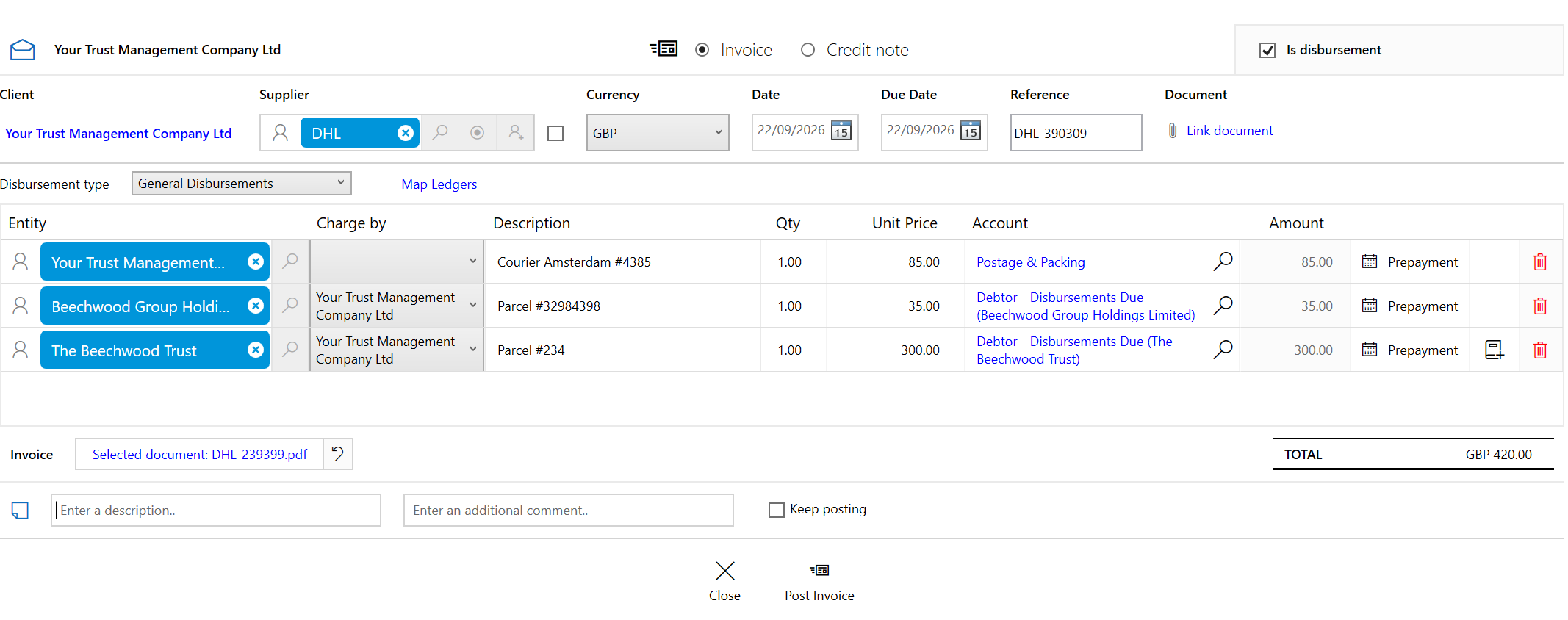
- Select Is disbursement and choose the Disbursement type, using an active fee type flagged as a disbursement.
- For each client cost, set Entity to the client whose cost it is and Charge by to the entity that will raise the charge. Choose the appropriate disbursement account.
- For your own costs, keep Entity as the paying entity and choose your own expense account. These lines are not recharged.
- Confirm each line’s entity, charging entity and account before submitting.
Splitting costs still creates one payable for the full invoice. Client disbursements are raised only when it is posted; the paying entity’s own costs are never disbursed.
Account suggestions and required entities
PlainSail suggests an account from the client’s currency-specific disbursement mappings, then the disbursement type. Override it or use Map Ledgers to update mappings. Every line needs an entity; where recharges are restricted to chargeable entities, each also needs a charging entity and the invoice needs a disbursement type.
Permissions and approval
- Preparing: choose Send for Approval if you cannot post. The invoice becomes Awaiting approval; nothing posts yet. Use Save as draft for unfinished work where enabled.
- Approving: open the entity’s invoice list, compare the invoice with its attachment, and review accounts and recharges. Choose Post Invoice, return it for correction, or delete an unwanted draft.
Created can mean draft or posted. Do not rely on the status alone.
Required roles and invoice statuses
Ask your administrator if an action is unavailable; draft options depend on your firm’s setup.
| Task | Required role |
|---|---|
| Open bookkeeping and payments | Bookkeeping_View |
| Post a supplier invoice, including one awaiting approval | Bookkeeping_Invoices_Post |
| Run supplier payments | Bookkeeping_Payments_Make |
| Post a manual settlement journal | Entities_Accounting_PostJournal |
| Reconcile a bank payment | Entities_Accounting_ReconcileBankAccount |
| Void a posted supplier invoice | Billing_RaiseInvoices; practice management entities also restrict this to the finance team |
Journals involving investment accounts also require Bookkeeping_ManualJournal_InvestmentAccounts.
| Other statuses | Meaning |
|---|---|
| Approved | Signed off. |
| Paid | Settled. |
| Rejected | Sent back and not proceeding. |
| Voided | Cancelled; the entries are reversed. |
Check or correct a posted invoice
Posting records the costs and one payable for the full total. Open the invoice to review its lines and attachment, or the purchase ledger (creditors) report to see what remains outstanding.
Wrong invoice? Void it and re-enter it; do not edit posted entries. If client disbursements have already been billed, finance must deal with those client invoices first.
Posting entries and voiding rules
Posting creates a balanced batch using each line’s account, with one supplier credit. Foreign currency uses the posting-date rate; prepayments go to the prepayment account and client disbursements are raised. The payable carries the reference, description and document.
Voiding requires the role above and an audit reason. Confirm reversal of any disbursements too. An individual batch reversal needs the separate batch reversal right; voiding is the normal invoice correction route because it keeps the invoice, ledger and disbursements consistent.
Pay through the Payments screen
Open Payments for the paying entity. Outstanding items are grouped by recipient and currency, with payment methods, invoice details and selected totals shown.
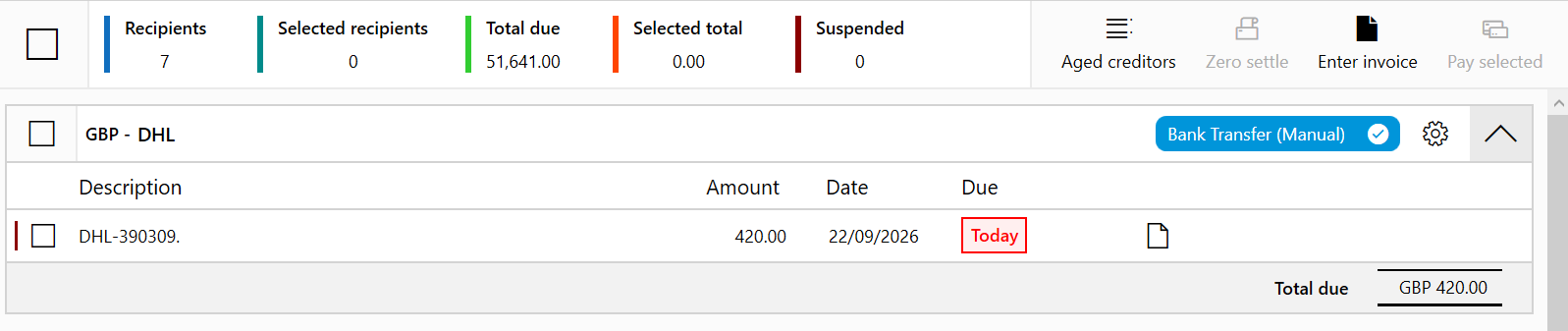
Find the invoices. Search transaction details or use name: for a supplier. The document icon opens the invoice; Aged creditors opens the creditors report.
Select what to pay. Tick the items. Each recipient’s total must be money owed to them, not a net debit. For partial or zero-balance settlements, see the options below.
Verify payment details. Use Edit payment preference for missing or changed details. Follow your firm’s verification process before using changed bank details.
Choose Pay selected. PlainSail locks the entity’s payment run and validates the selection. Resolve reported errors before restarting. If another user holds the lock, contact them or your administrator.
Review processing. Providers validate and process groups by payment method and currency. Complete any required bank upload and authorisation; producing a file is not confirmation that the bank has paid it.
If a group fails, results so far are saved and you can cancel or continue. Cancel stops at the next safe point after the current operation; it does not undo completed payments. Review saved results before retrying so you do not pay twice.
Close the completed run. The lock is released and the list refreshes. Fully paid items leave the list; part-paid balances remain.
Part payments, zero balances and payment entries
- Part payment: split the item with an amount greater than zero and less than the full balance. Select that part; the remainder stays outstanding.
- No money to send: select offsetting invoices and credit notes, then choose Zero settle. Every selected recipient must total exactly zero. The items close with a payment reference.
- Filters: narrow by payment method or snoozed recipients. Select all includes visible items except snoozed recipients.
- Payment details: every selected recipient needs them. You can save updated preferences for future runs.
- Ledger entries: payment debits the purchase ledger and credits the bank in the payable’s currency. Book-currency conversion uses the value-date rate; exchange differences are handled on posting. The payment reference links the invoices.
Bank files, remittance advices and paying entities
Payment runs can generate bank instructions and remittance advices for suppliers. File formats depend on the configured bank transfer provider plugin, for example HSBC CMM or HSBC SEPA. Ask your administrator to set up the appropriate provider.
If a different company settles the liability, select the appropriate paying entity before processing and confirm the arrangement with your finance team. Complete any required bank upload and authorisation; a generated file does not confirm payment.
Record a settlement by manual journal
For an offset, external settlement or correction, a journal records the settlement but does not send money. Follow your finance team’s guidance and make sure it has not already been recorded.
Manual settlement journal steps
- Make sure the settlement has not already been recorded by a payment run or bank reconciliation.
- Create a batch of type Manual journal for the paying entity. See the Batch Editor for entering the lines.
- Debit the purchase ledger against the supplier and credit the account that actually funded the settlement.
- Include the supplier and invoice reference in the narrative. The journal does not carry the invoice’s payment reference.
- The batch must balance to zero before you post it using the post-journal right. Review the supplier’s purchase ledger afterwards to confirm the intended balance is cleared.
For an invoice and credit note that total zero, use Zero settle instead; it retains their link without a journal.
Match or allocate a bank payment
Open the paying entity’s account in Bank Reconciliation. For each outgoing statement line:
- Already recorded through Payments or a journal? Match the statement line to the existing entry. Confirm the amount and reference, then reconcile. Do not create another settlement.
- Paid outside PlainSail and not yet recorded? Use Assign to invoice to allocate the statement payment to outstanding supplier invoices, following the steps below.
- Not a payment for a supplier invoice? Review whether a new entry or an opposite entry (for example, the other side of a transfer) is appropriate before reconciling.
Allocate an unrecorded payment to supplier invoices
- On the outgoing statement line, choose Assign to invoice.
- Select the supplier or suppliers. Only outstanding invoices in the statement line’s currency are offered; settled invoices are excluded.
- Review the suggested allocation. PlainSail fills the oldest invoice balances first. Adjust each amount if the payment was intended for different invoices.
- Review the generated narrative and allocation total; resolve any over-settlement warning before saving.
- Review the resulting match and choose Reconcile once the selected entries balance against the statement line.
Before reconciling: investigate any difference or proposed balancing entry. Do not treat an unexplained difference as a settled invoice.
Matching tools and undoing a reconciliation
Use Find matches to search again, or Fuzzy search / Search to look more widely. Split allows a partial match with the balance left outstanding; unsplit undoes it.
Confirm all reconciles lines with confident matches; review the matches first. For recurring transactions, see Reconciliation Rules.
To undo an incorrect match: use Undo reconciliation on the bank statement transactions list. The statement line becomes available to match again. This does not by itself deal with postings created during reconciliation; ask the finance team to reverse those or void a related supplier invoice as appropriate before reprocessing.
Troubleshooting supplier invoices and payments
I cannot select an account or post the invoice
Select supplier and client; one must be the entity whose books are open. Complete the required line details and any disbursement fields. The Unknown account is not allowed.
The reference already exists for this supplier
Look for an existing copy before entering another invoice; references must be unique per supplier.
The posting date is rejected or an exchange rate is missing
Use a permitted date (or ask the period administrator to review the restriction), or add the missing posting-date rate in Exchange Rates, then retry.
Post Invoice is unavailable, or the invoice is awaiting approval
Without the posting right, use Send for Approval. An authorised colleague must post it before it reaches the purchase ledger; unwanted drafts can be deleted.
The supplier does not appear in Payments
Use the purchase ledger report to establish whether the invoice is posted or settled, then review payment-method filters and snoozed recipients.
The selected transactions do not total to a credit
Credit notes may exceed the invoices selected. Adjust the selection; for a zero total, use Zero settle.
Payment information is missing, or the run is locked
Use Edit payment preference for missing details. For a lock, contact the user or administrator; do not start a duplicate run.
A part-paid invoice is still outstanding
Only the split amount was paid; the remainder stays outstanding until settled.
A cost was disbursed to the wrong client
Have an authorised colleague void and re-enter the supplier invoice. If the disbursement was already billed, finance must deal with the client invoice first.
Back to Supplier Invoices & Payments
Bank Reconciliation
Bank reconciliation matches transactions imported from bank statements against transactions posted in the accounting system to ensure that the bank balance in the books matches the actual bank balance.
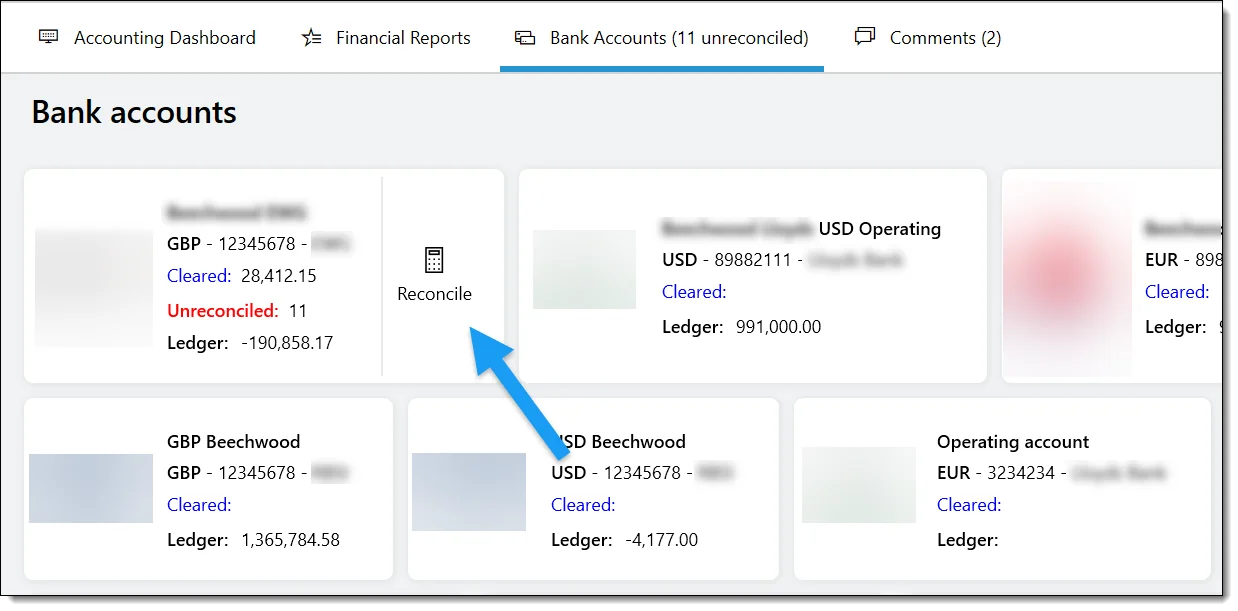
Navigate from the entity's Accounting tab → click Reconcile on a bank account tile, or from Bookkeeping > Bank Reconciliation.
Entities_Accounting_ReconcileBankAccount
Selecting a bank account
Click the bank accounts button to show all accounts with unreconciled entries. The list shows bank name, account number, currency, and the count of pending transactions. Click an account to begin.
Reconciliation display
- Bank account details – bank name, account number, currency, and bank logo.
- Statement Opening Balance – from the imported bank statement.
- Statement Closing Balance – from the imported bank statement.
- Ledger Reconciled Balance – current reconciled balance in the accounting ledger.
- Net Unreconciled – total of all unreconciled statement line amounts.
- Balance After Reconciliation – projected balance after all shown items are reconciled.
- Difference – difference between statement closing and ledger reconciled balance.
- Statement Lines – unreconciled bank statement transactions ordered by date.
Reconciling transactions
Each statement line shows the bank transaction details and any matched transactions (auto-suggested) or rule matches.
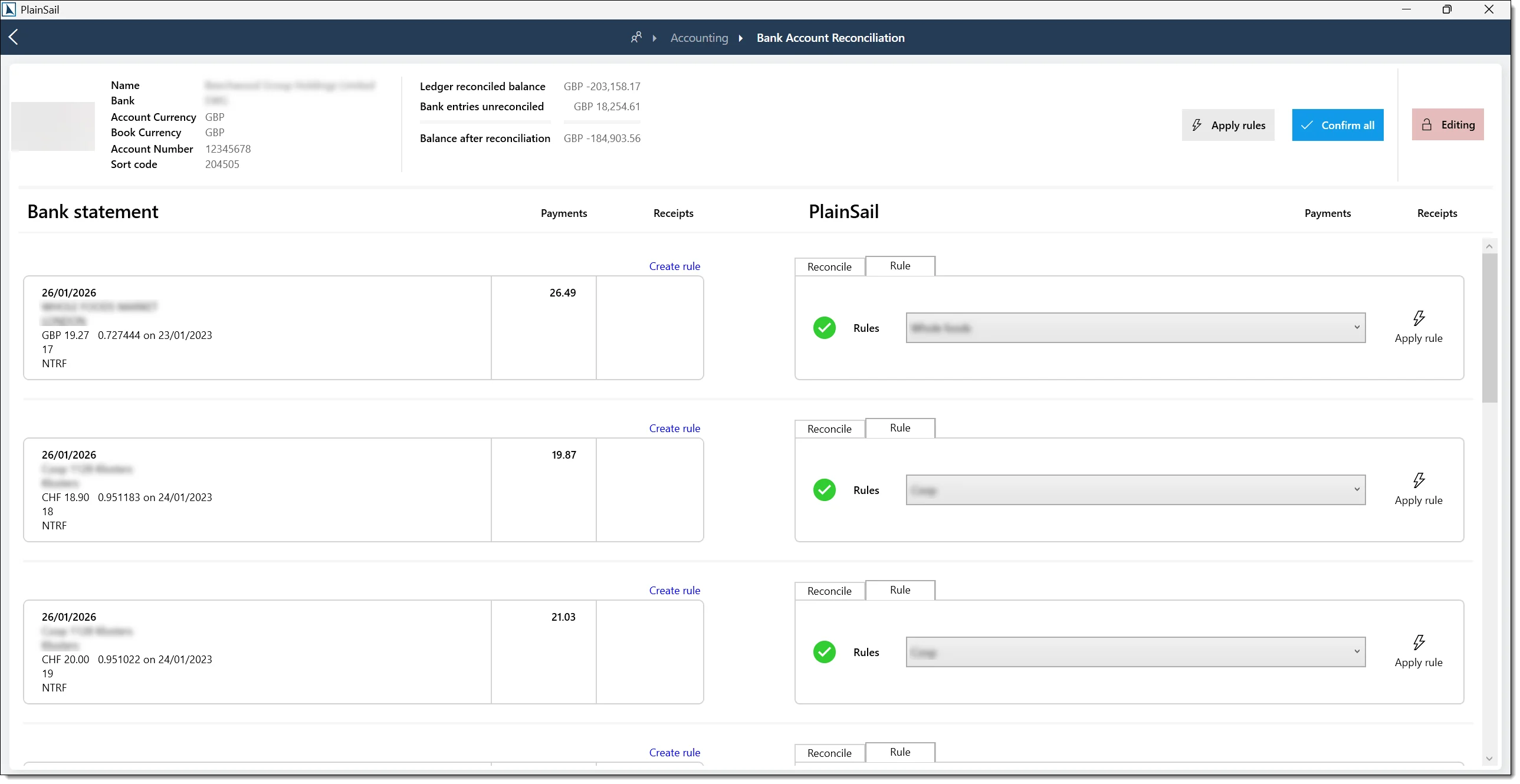
- Automatic matching – the system automatically suggests matches between statement lines and posted transactions.
- Manual reconciliation – click a statement line to expand, review the suggested match, and click Reconcile.
- Batch reconciliation – press Ctrl+Shift+R to automatically reconcile all statement lines with confirmed matches.
- Apply all rules – click Apply All Matching Rules to process all statement lines matching a reconciliation rule.
When a statement line is reconciled, it is removed from the unreconciled list, the ledger reconciled balance updates, and matching suggestions on other lines referencing the same posted transaction are updated.
Locking
Bank accounts can be locked during reconciliation. Click Lock to prevent concurrent access. If another user is reconciling, a message informs you. Locks are released when you navigate away.
Reconciliation Rules
Reconciliation rules automate matching for recurring transactions (e.g. monthly direct debits):
On an unreconciled statement line, click Create Rule.
The rule editor opens, pre-populated with the bank transaction details. Define matching criteria (description pattern, bank, entity, currency) and target ledger account.
Click Save. The rule is immediately applied to all matching statement lines.
Bookkeeping_BankReconciliation_Rules_Edit to edit rules. Bookkeeping_BankReconciliation_Rules_CreateGlobal to create global rules.
Handling incorrect rule matches
When “Apply all rules” produces an incorrect match:
The matched transaction is highlighted in the reconciliation screen.
Unmatch the incorrect pairing by selecting it and clicking Unmatch or pressing Delete.
Manually match the bank statement line to the correct ledger transaction.
Edit the rule (if the rule is wrong) via Bookkeeping > Reconciliation Rules to prevent future mis-matches.
Delete the rule if it is no longer valid.
Year-End Closure
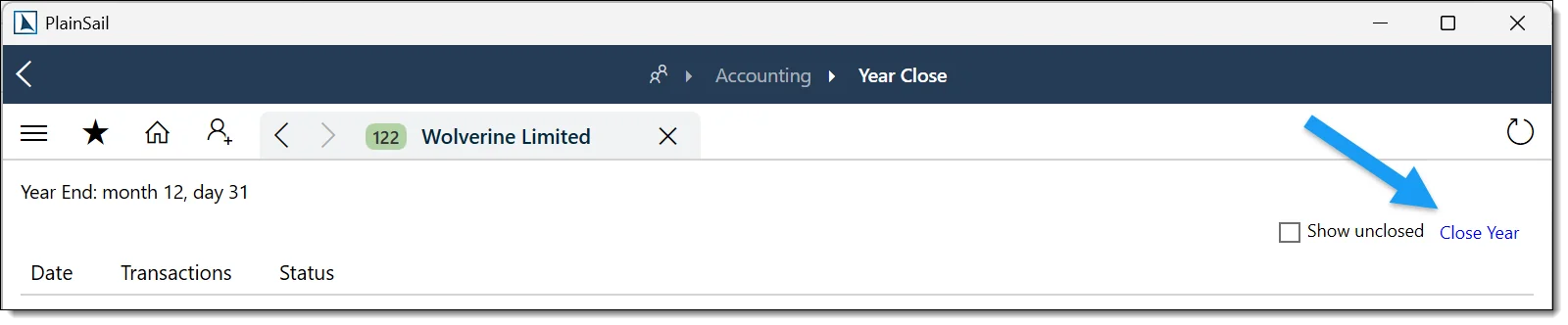
Year-end closure finalises a financial year for an entity. It validates pending transactions, optionally performs FX revaluation, generates closing journal entries that transfer P&L balances to the balance sheet, and locks the closed period.
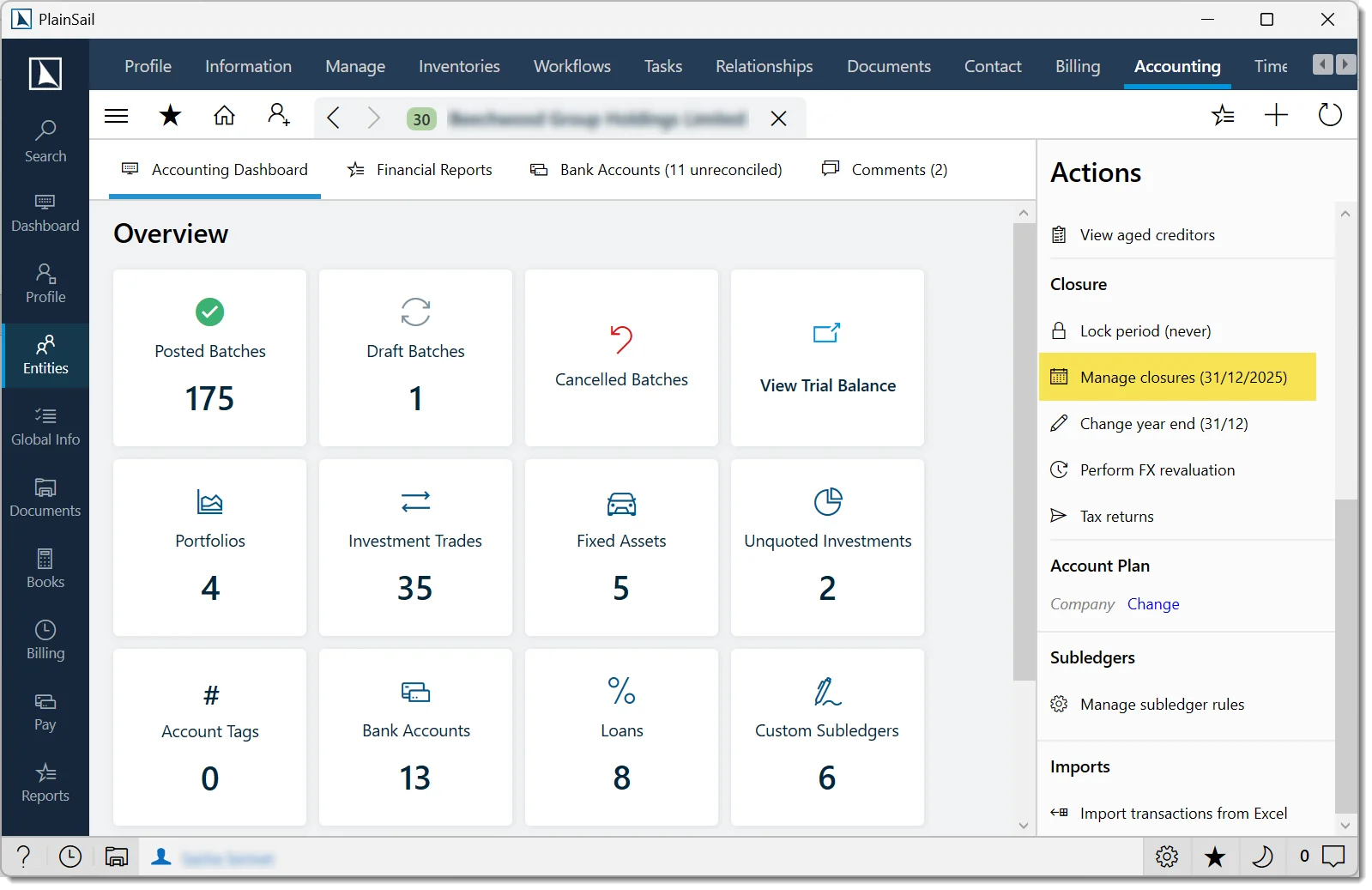
Entities_Accounting_CloseYear
The Close Year wizard
Validate Dates – confirm the closure date (typically the last day of the financial year). The system checks that the entity has the required accounting periods configured.
Validate Pending Transactions – checks for any unposted (draft) batches dated before or on the closure date. You must post or cancel them before proceeding.
Generate FX Transactions – if the entity has foreign-currency ledgers that require revaluation, FX revaluation entries are generated and posted immediately. Skipped if no foreign-currency accounts exist.
Generate Closing Transactions – calculates P&L balances and generates journal entries to close them to the appropriate balance sheet accounts (as defined by "Closes To" settings). You can review before proceeding.
Confirm and Close – review the summary (entity name, closure date, number of closing transactions) and click Confirm to post the closing entries and lock the period.
After closure
- The closure date is recorded on the entity and becomes the "Last Closed Date".
- No transactions can be posted with a value date on or before the closure date.
- Subsequent years can be closed by running the wizard again.
Financial Statements
Financial statements (accounts) can be produced from PlainSail directly from the accounting data, generated as Excel workbooks based on report templates.
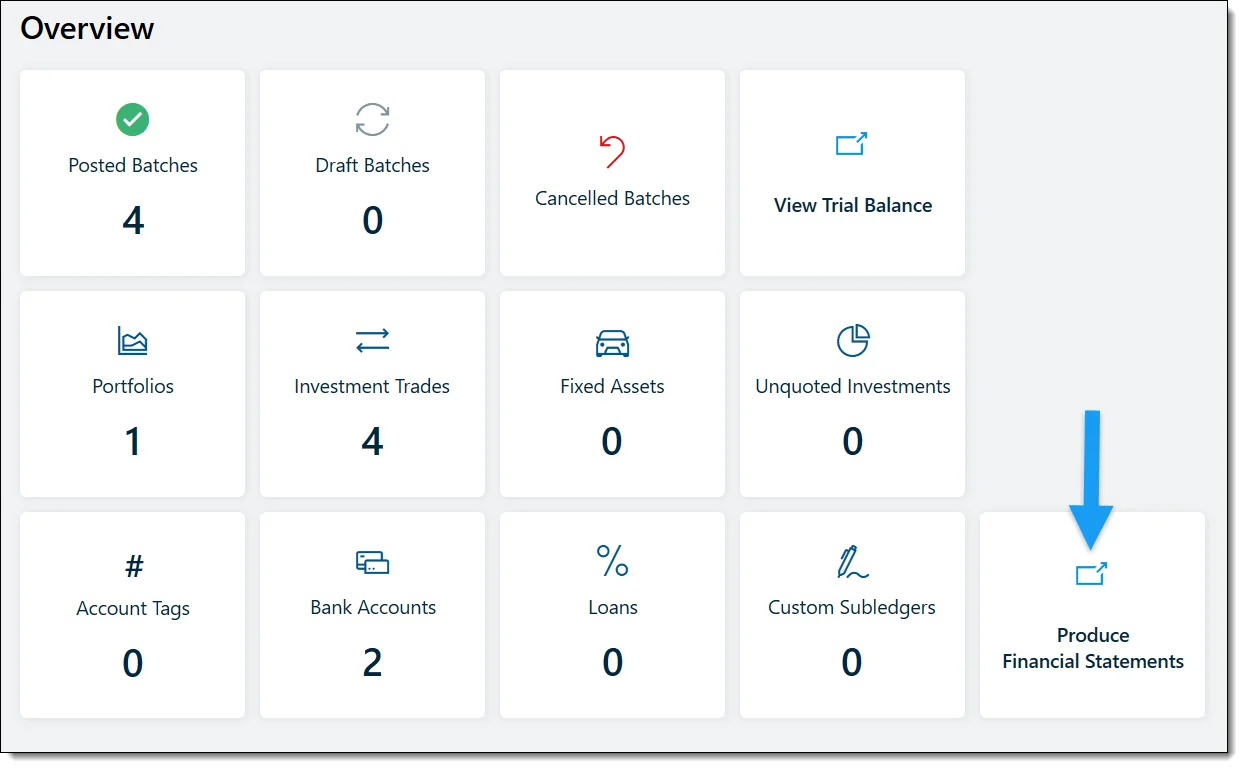
Producing financial statements
From the entity's Accounting tab, click Produce Financial Statements.
Configure date fields: Current period (From/To) and Prior period (From/To) – auto-calculated based on the entity's last closure date.
Set options: Include Workings (working papers spreadsheet), Recalculate Row Heights (Excel formatting), Include Tiny Amounts as Zero (treat small rounding amounts as zero).
Click Produce Accounts. The system performs the following sub-steps:
- Calculate balances – queries the trial balance for the current and prior periods.
- Generate FRS workings – calculates cash equivalents, retained earnings, reserve account note groups, and rounding adjustments.
- Apply rounding – amounts are rounded to the configured precision.
- Download from SSRS – download the financial statement template provided by your organisation.
- Process through Excel – the template is populated with calculated data in Excel.
- Save – the generated financial statements document is saved to the entity’s document library.
- Open – the document opens in Excel for review.
Click Preview Workings to produce a draft working papers spreadsheet without full financial statements. Click Manage Notes to edit accounting policy notes that appear in the statements.
Scenarios
Scenarios are reusable transaction templates that speed up repetitive journal entries. A scenario defines transaction lines with ledger accounts, currencies, and calculation rules, but without specific dates or amounts – those are filled in when applied.
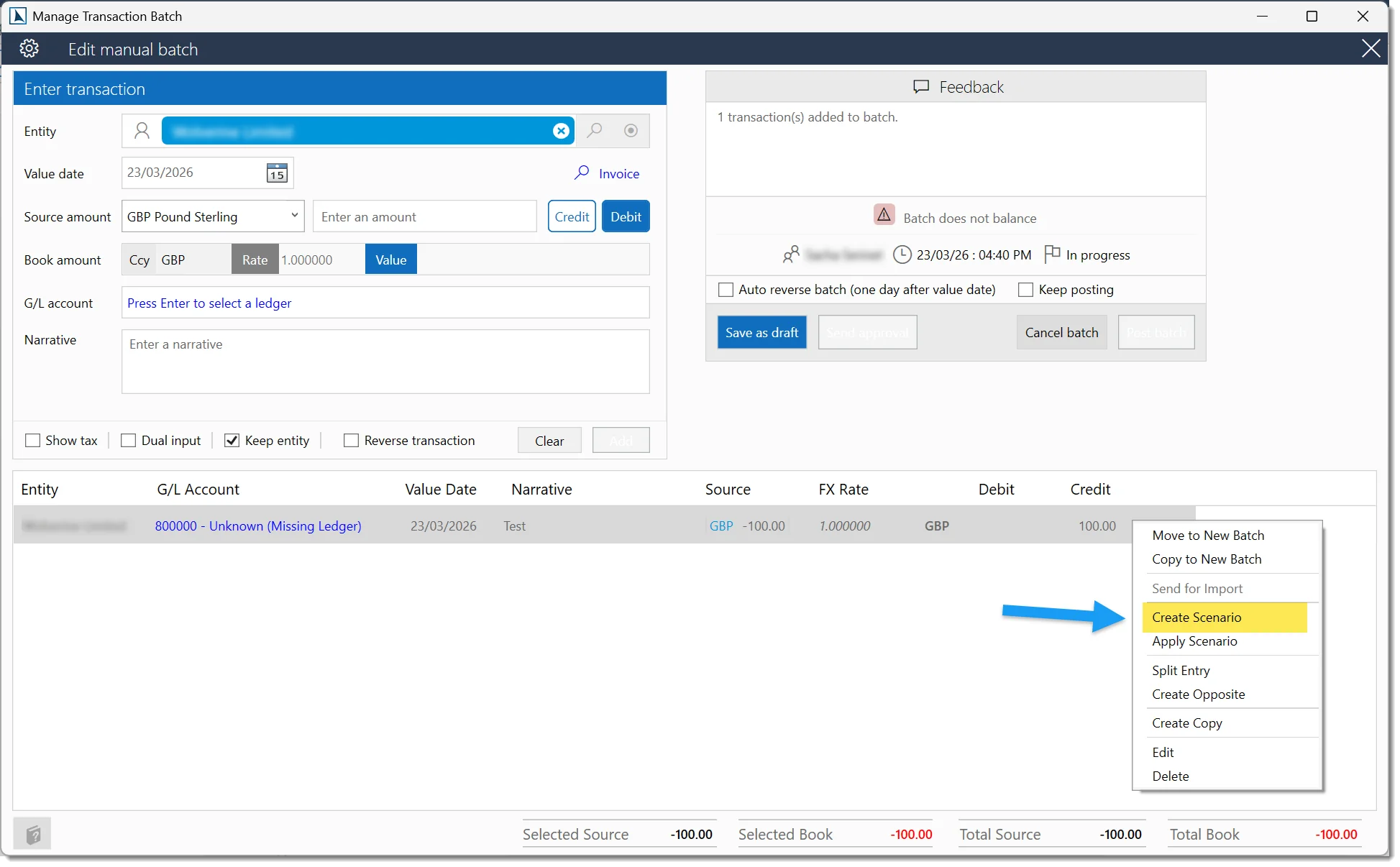
Bookkeeping_Scenarios_View to view. Bookkeeping_Scenarios_Edit to create or edit.
Creating a scenario
Create from the batch editor (select transactions → Create Scenario) or from the scenario manager:
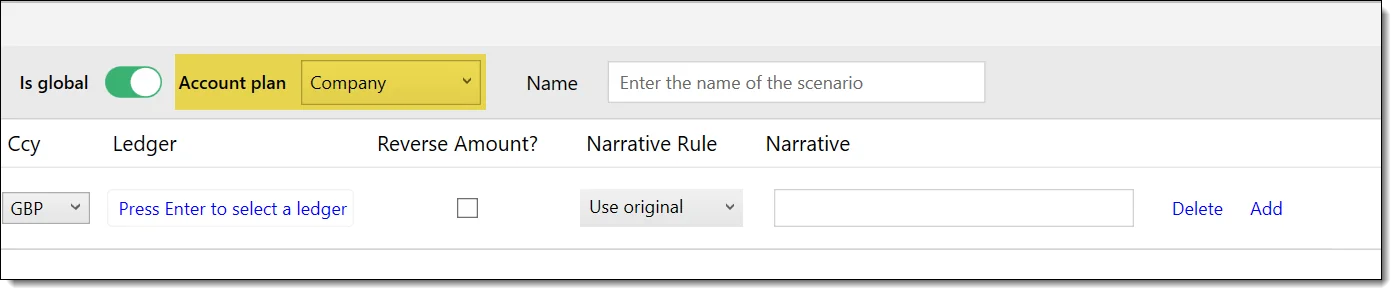
- Enter a name for the scenario.
- Optionally select a currency (or "Use Original" to inherit).
- Choose Entity-specific (only available for one entity) or Global (available for all entities; must select an account plan).
- For each line, define: ledger, subledger detail, entity, currency override, narrative rule, and whether to invert the original amount.
Applying a scenario
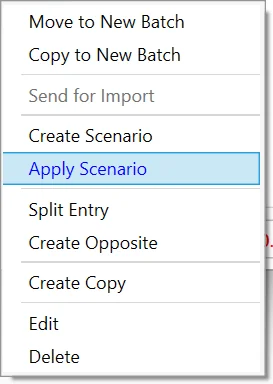
From the batch editor: select a transaction, click Apply Scenario, review the generated transactions in the dialogue, and click OK to add them to the batch.
Intercompany transactions
For transactions between entities managed by the same firm:
Post a debit batch on Entity A (e.g. debit intercompany receivable, credit revenue).
Post a credit batch on Entity B (e.g. debit expense, credit intercompany payable).
Use consistent narratives and reference numbers.
Periodically reconcile intercompany balances using the Trial Balance reports.
Eliminations for group reporting
For group reporting or consolidated accounts, intercompany transactions need to be eliminated. Use the Scenarios feature to create elimination entries that zero out intercompany balances for consolidation purposes. To aggregate and translate the source trial balances themselves into a group entity, see Group Consolidation – the consolidation run does not perform eliminations, so scenario-based elimination entries remain necessary.
Bookkeeping_Scenarios_View and Bookkeeping_Scenarios_Edit for scenario management.
Group Consolidation
Group consolidation combines and FX-translates source trial balances into a single journal on the group entity. Import Excel or CSV files, or extract trial balances from other PlainSail entities, then map, translate and review the journal through a four-step wizard. Every run retains its full plan and can be undone.
Open: Group entity → Accounting → Group consolidation. Choose Manage mappings, Run, or Consolidation history.
- View:
Entities_Accounting_View - Post a run:
Entities_Accounting_PostJournal - Undo a run:
Entities_Accounting_ReverseBatch
Key concepts
- Group entity – the entity that receives the consolidated journal. Any entity can act as a group entity; consolidation is opened from its Accounting tab.
- Consolidation run – one consolidation for a period: its sources, plan, and posted batch. Runs move through Draft → Posted → Reversed; Reversed is final.
- Rate strategy – how each mapped ledger line is translated: Closing, Average, or Fixed (a fixed strategy requires a rate on the mapping).
- Import mode – what the source files contain: Movements only (accumulate mode), which is recommended, or Full trial balance (difference mode).
*CTA*– the currency translation reserve mapping row. It must point to an equity reserve ledger before any multi-currency run; translation differences post to this ledger.
Ledger mappings
Every source ledger code must be mapped to a group ledger before a run can be built. In Manage mappings:
- Identify the Source and Code, choose a Ledger from the group chart of accounts, and select a Rate strategy.
- Click Save on each row. Unmapped rows remain highlighted until resolved.
- For multi-currency runs, map
*CTA*to your currency translation reserve, an equity ledger. The wizard cannot proceed until this is saved.
| Account type | Rate strategy |
|---|---|
| Assets and liabilities | Closing |
| Profit and loss | Average |
| Retained earnings and current-year reserves | Average |
| Share capital and pre-acquisition reserves | Fixed at the acquisition-date rate |
Source data
- Import file… loads an Excel or CSV trial balance for an external source.
- Extract from entity pulls another PlainSail entity's trial balance for the period.
File requirements
- Required columns:
LedgerCodeand eitherAmountor bothDebitandCredit. - Other recognised columns:
LedgerName,SourceAmount,SourceCurrencyandBookCurrency. - Control total: the file must balance to zero. An unbalanced file is rejected with
The consolidation import file is not balanced. Total is [total] [currency].
Running a consolidation
From Consolidation history, click Run consolidation to open the four-step wizard.
A consolidation or other locked operation is already in progress for this entity.
Choose group and strategy
- Confirm the group entity and its group currency.
- Choose Movements only (accumulate mode, recommended) or Full trial balance (difference mode) to match your source files.
- Set Value date start and Value date end (posting date).
The readiness panel flags unmapped ledger codes, missing source lines and a missing *CTA* ledger for multi-currency runs. These can be resolved in the next step.
Import sources
- Import files and/or extract entities. Review each source's currency, line count and total in Pending sources; remove any pending source that is not needed.
- Resolve any remaining unmapped codes inline before proceeding.
- For multi-currency runs, select the CTA ledger and click Save CTA ledger.
Rates
The wizard requests only the rates needed for each currency pair:
- Closing rate: balance-sheet cumulatives.
- Average rate: profit-and-loss movements.
- Historic rate: movements on historic-rate equity accounts. A warning appears if these movements require a historic rate.
Enter the rates and click Apply rates. No rates are requested when every pending source is already in the group currency.
Review plan
The plan shows the journal exactly as it will be posted. Check each line's:
- Source entity, source ledger and destination group ledger.
- Source currency and amount, applied rate and consolidated amount.
- CTA and rounding adjustments.
Click Accept plan, then Finish. Confirm Post [n] consolidation lines totalling [total] [currency] to [entity] at [date]? to post the run.
After posting
- A single batch is created on the group entity, dated at the value date end.
- Each line's narrative follows
Consolidation — [source name] - period: [start date] to [end date], with the source ledger code as the sub-narrative. - The residual translation difference posts to
*CTA*. The exact posted plan is stored on the run for later review.
Are you sure you want to leave this consolidation wizard? Leaving deletes the run's pending sources and releases the entity lock – nothing is posted.
Consolidation history and undo
Consolidation history lists every run with its period end, status (Posted or Reversed), posted and reversed timestamps, reversal note, batch, and source and line counts.
- Show reversed: toggle reversed runs into view.
- View plan: open the stored plan detail for any run.
- Undo: reverse the posted batch and mark the run Reversed.
This consolidation cannot be undone because its value date is in an accounts locked period.
Import '[file]' dated [date] is on or before the last posted consolidation ([last posted date]). Undo that run first or re-import with a later as-at date. A run's value date must also fall after the last posted consolidation.
Exchange Rates
The exchange rates module manages foreign currency rates used for multi-currency transactions and FX revaluation. Navigate to Bookkeeping > Exchange Rates.
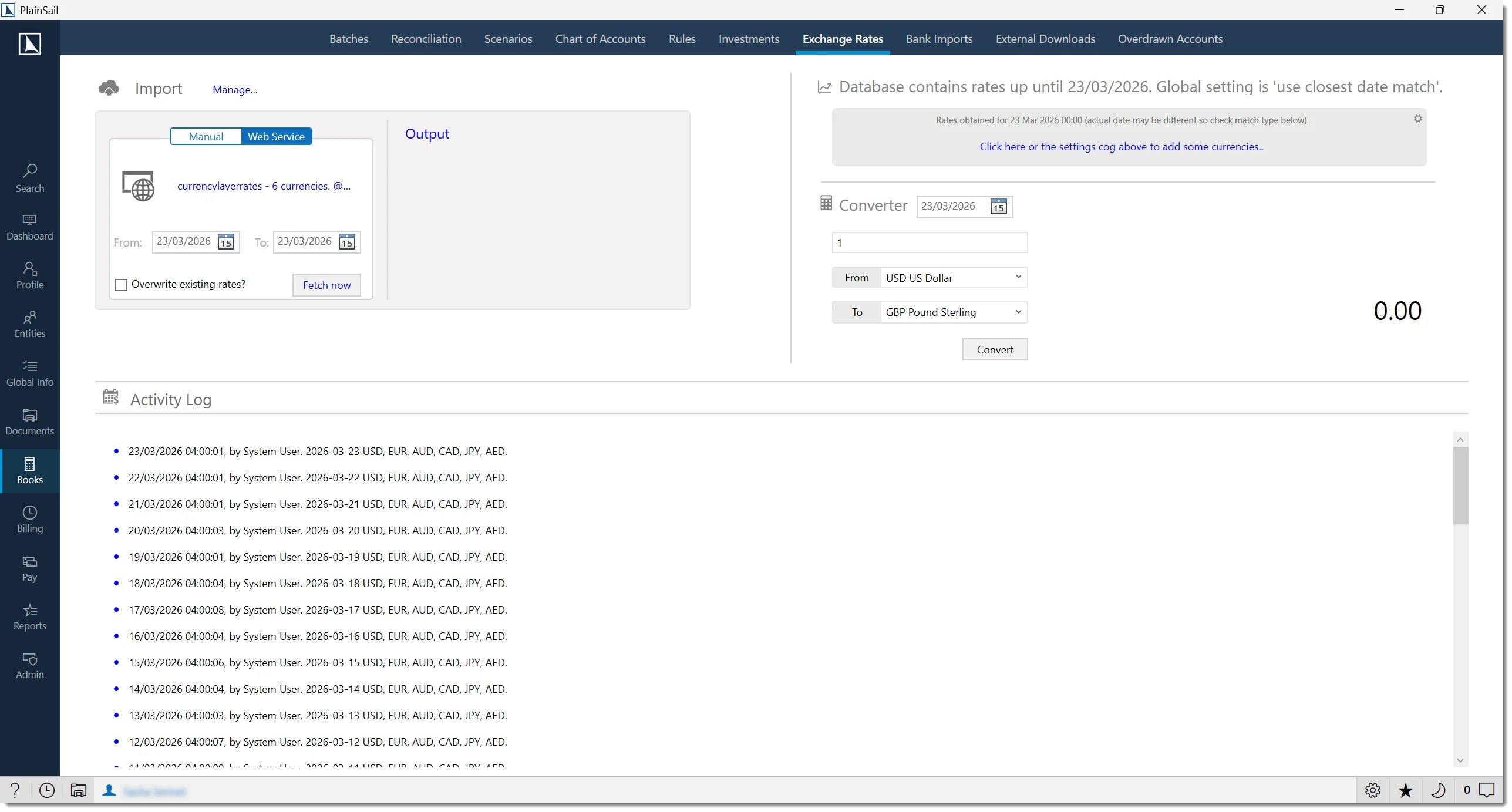
Bookkeeping_ExchangeRates_View to view. Bookkeeping_ExchangeRates_Edit to import or edit.
Import methods
- Manual File Import – import rates from an Excel (.xls, .xlsx) or CSV file. Existing dates are overwritten; new dates are added.
- API Service – if an external exchange rate provider is configured, rates are fetched automatically at a configured time each day.
Fetching rates from API
Switch to the Service tab. Select a Start Date and End Date.
Choose whether to Overwrite Existing rates for matching dates.
Click Fetch Date Range and confirm. For large ranges (10+ days), a warning appears.
Exchange rate service availability
Contact your PlainSail implementation team to arrange the exchange rate service and agree the currencies and update schedule.
Converter tool
A built-in currency converter is available at the bottom of the exchange rates screen. Select currencies and an amount to see the converted value using the latest rates.
Manage individual rates
Click Manage Rates to view, edit, and add individual exchange rates for specific dates.
Rate Conversions
When a transaction is posted in a currency different from the entity’s base currency, PlainSail looks for an exact match (currency + date) in the exchange rate table. How the system handles missing rates depends on a key configuration setting.
Require Exact FX Dates setting
This setting is found under Admin > Configuration > Options and has two modes:
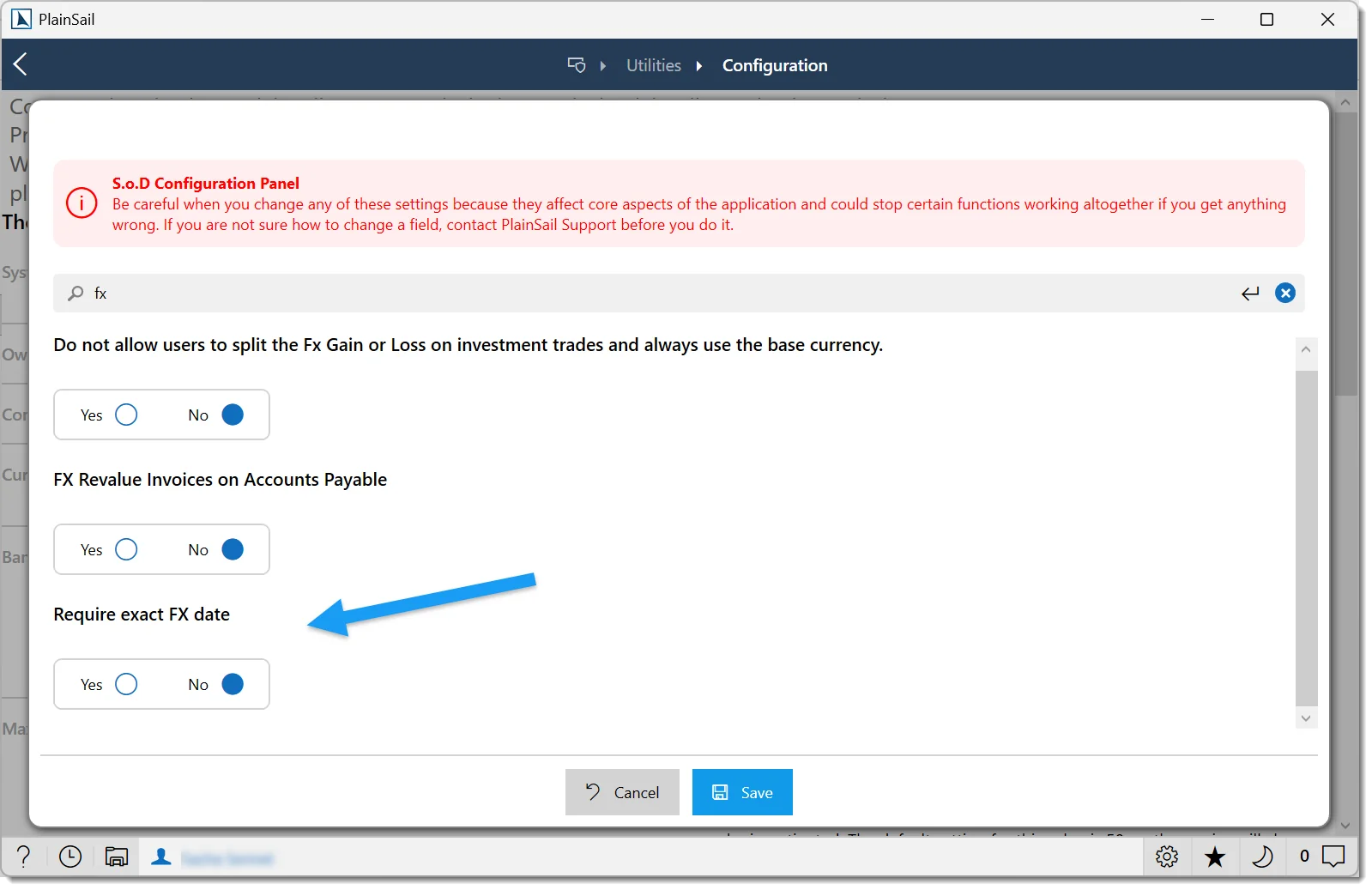
- Yes – if no exact rate is found for the transaction date, an error is raised. You must fetch or manually enter the rate before the transaction can be posted.
- No – PlainSail uses an algorithm to find the best available rate. For example, if 10 days of rates are missing between the 15th and the 25th and you post a transaction on the 20th, the system calculates a median rate between the two closest available dates. For larger gaps, the single closest available date may be used instead.
Manual override
In the Batch Editor screen, you can override the system-determined rate with your own value – the book value recalculates automatically based on the new rate. Conversely, entering a specific book value manually causes PlainSail to set the exchange rate appropriately.
Cross rates
Exchange rates are stored against your company’s base currency. For conversions between two non-base currencies, PlainSail calculates a cross rate using the following formula:
fromRate = GetRate(fromCurrency, date)toRate = GetRate(toCurrency, date)crossRate = fromRate / toRate
For example, if £1 = $3 and £1 = €2, then the cross rate for EUR to USD is €1 = $1.50. The Converter screen displays the type as “Cross rate” alongside the calculated value.
Cross Rate = Rate A ÷ Rate B, where Rate A is the exchange rate from Currency A to the base currency and Rate B is the exchange rate from Currency B to the base currency. For example, if EUR/GBP = 0.8850 and USD/GBP = 0.7900, then EUR/USD = 0.8850 ÷ 0.7900 = 1.1203.
FX Revaluation
Certain ledger accounts are configured for FX revaluation – this is controlled by a checkbox on the ledger setup screen. Revaluation adjusts the book value of foreign currency balances to reflect current exchange rates, ensuring your financial statements are accurate at period-end.
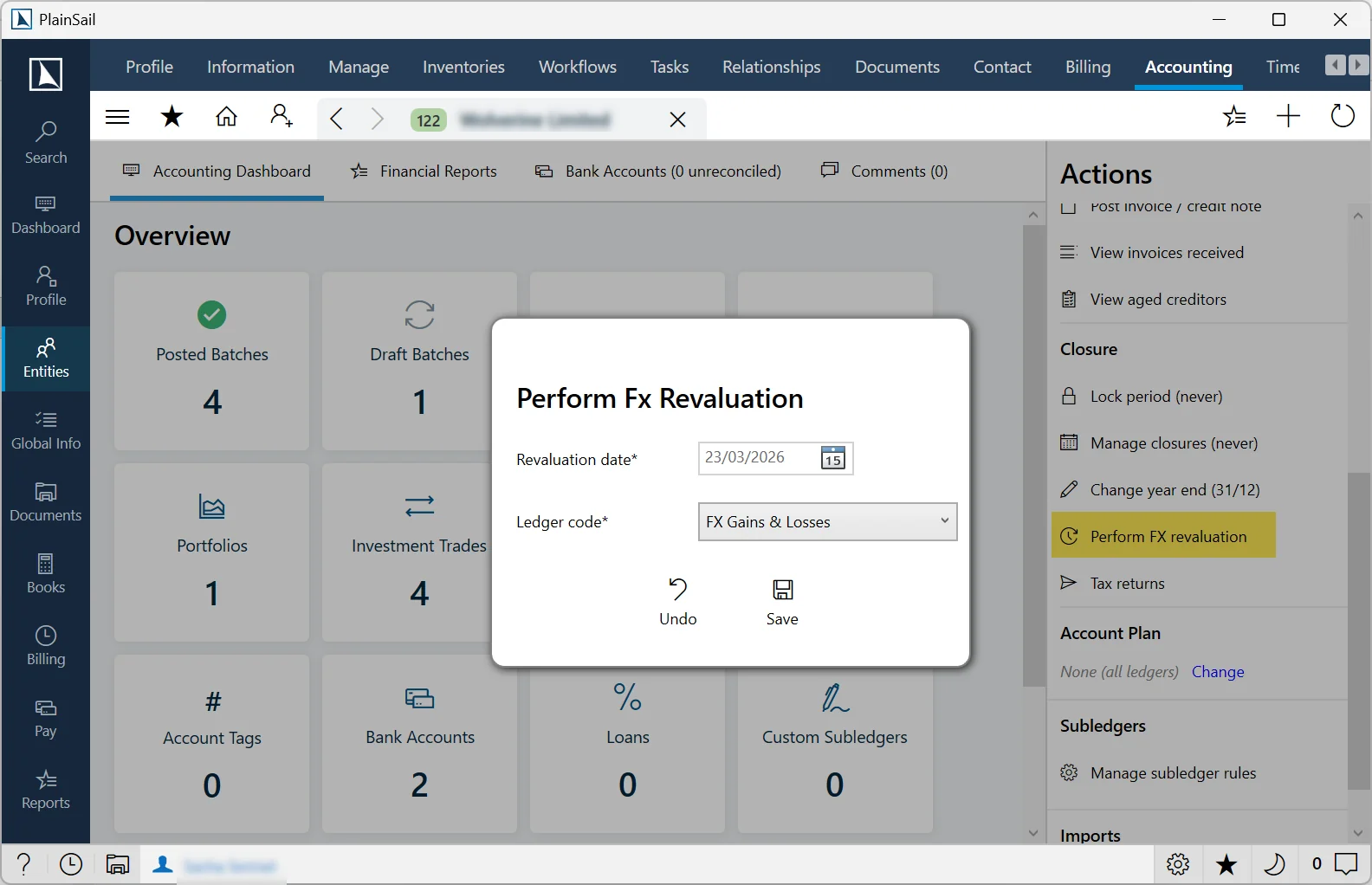
Revaluation is run as a batch process from the entity’s Accounting screen. The process works as follows:
- Revaluation amounts are calculated using the exchange rate for each relevant currency on the specified revaluation date.
- The resulting adjustments are posted to a new batch.
- You can review and edit the batch before posting – for example, to adjust individual rates if required.
Reviewing revaluation transactions
When the system generates FX revaluation transactions, check the following before approving:
- Revaluation date – confirm the date is correct for the period you are closing.
- Exchange rates – verify the rates used match your expected rates for that date.
- Gain/loss amounts – ensure the amounts are reasonable relative to position sizes and rate movements.
- Ledger accounts – confirm the correct FX gain/loss accounts are debited and credited.
Watch for anomalies such as unusually large gains or losses (which may indicate an incorrect exchange rate), missing positions (a foreign currency balance that was not revalued), or zero-value entries (which may indicate the rate has not changed or the position is zero). Once reviewed, confirm the revaluation batch for posting.
Investments & Portfolios
The system supports tracking investment portfolios including quoted investments (stocks, bonds), unquoted investments (private equity, property), and stock options.
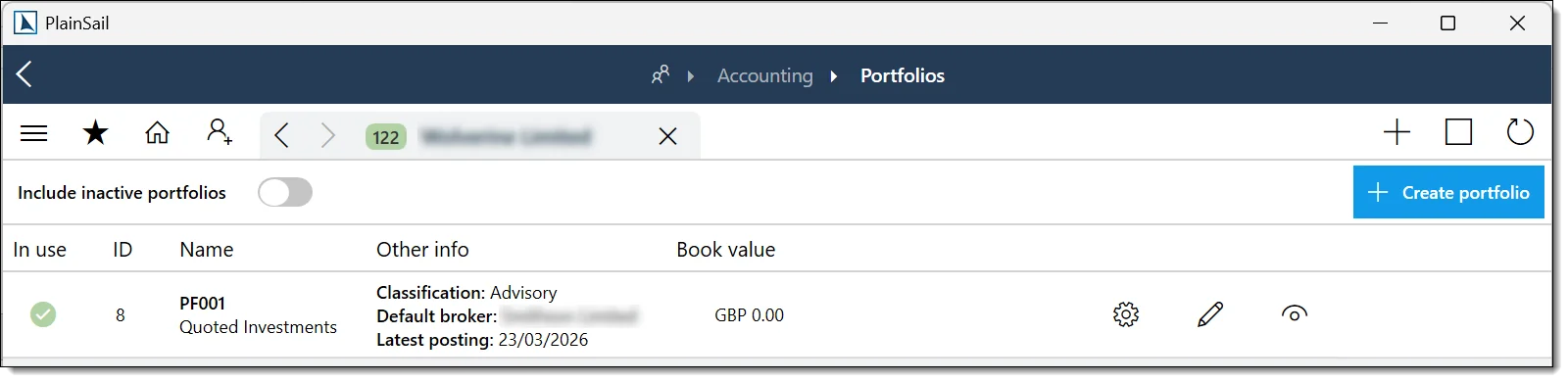
Quoted investments
Publicly traded securities with name, ticker, exchange, currency, and pricing. Requires Bookkeeping_QuotedInvestments_View, _Create, _Edit.
Unquoted investments
Privately held assets managed similarly to quoted investments but without market-based pricing. Requires Bookkeeping_UnquotedInvestments_View, _Create, _Edit.
Portfolios
Collections of investments held by an entity. From the entity’s Accounting tab, click View Portfolios to see holdings, valuations, and transaction history.
Creating a portfolio
Navigate to the entity’s Accounting tab > Portfolios.
Click Add Portfolio.
Complete the following fields:
| Field | Required | Description |
|---|---|---|
| Name | Yes | Portfolio name (e.g. “Main Investment Portfolio”). |
| Currency | Yes | Base currency for the portfolio. |
| Classification | No | Category from the PortfolioClassification list. |
| Start Date | No | Date the portfolio was opened. |
| Custodian | No | The custodian entity. |
Click Save.
Entities_Accounting_Portfolio_Create
Investment trades
Buys, sells, and revaluations recorded as transaction batches with type “Trade”. Click View Investment Trades from the entity’s Accounting tab.
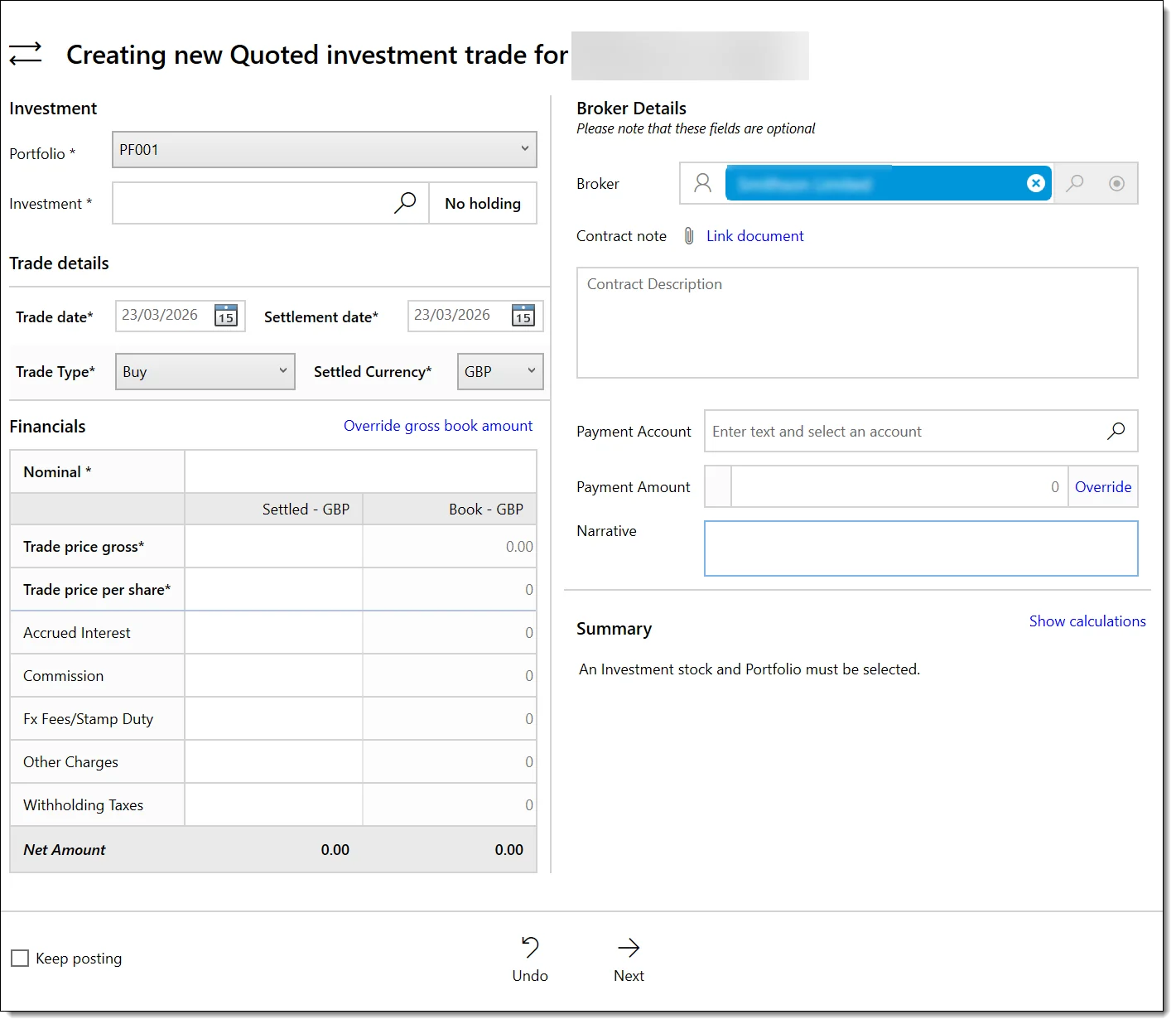
Recording a trade
Open the portfolio.
Click New Trade (or use the Post Trade button from the Accounting tab).
Complete the trade details:
- Investment – select the security (quoted or unquoted).
- Trade Type – Buy or Sell.
- Quantity – number of units.
- Price – price per unit.
- Trade Date – when the trade was executed.
- Settlement Date – when settlement occurs.
- Currency – trade currency.
- Fees/Commission – any transaction costs.
Click Post. The system generates the accounting entries (debit investment account, credit bank/settlement account).
Entities_Accounting_PostTrade
Running a portfolio revaluation
Navigate to the entity’s Accounting tab > Portfolios.
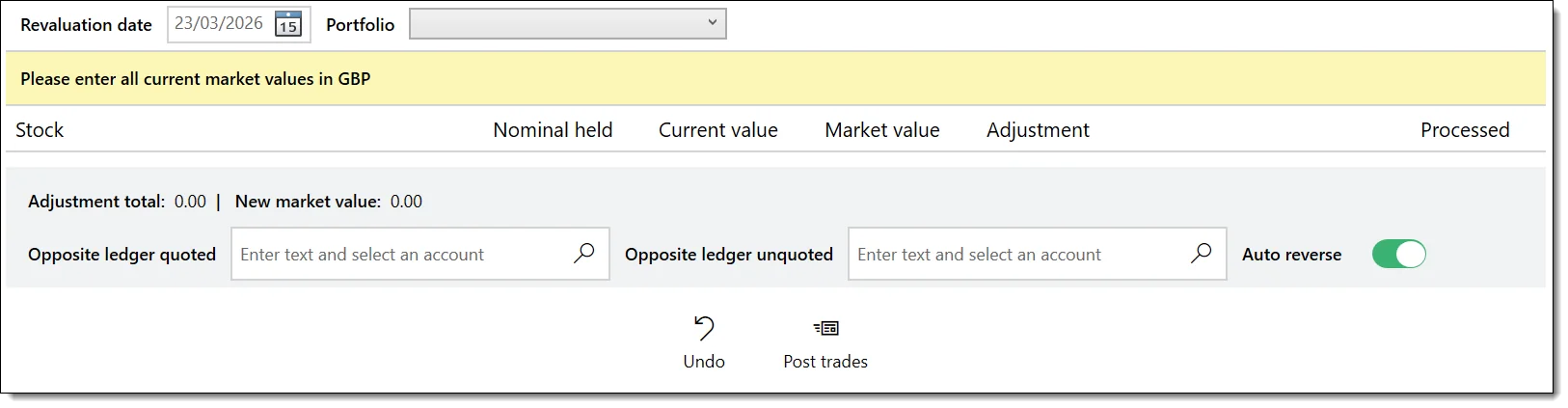
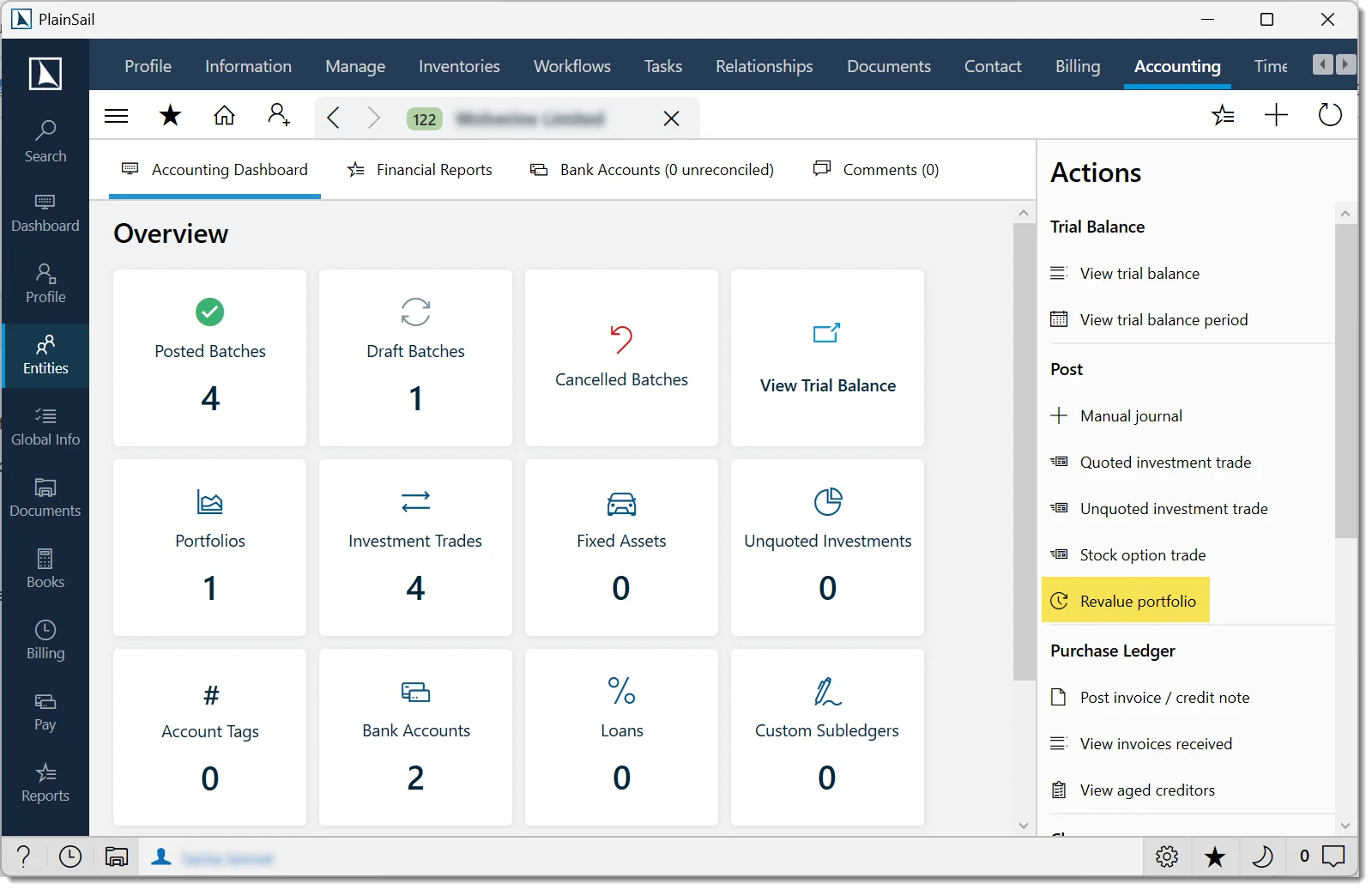
Select the portfolio.
Click Revalue.
Select the revaluation date.
The system:
- Fetches current market prices for quoted investments.
- Calculates unrealised gains/losses for each position.
- Generates revaluation journal entries.
Review the entries and confirm posting.
Investment data sources
| Source | Constant | Description |
|---|---|---|
| Manual | N/A | User enters prices manually. |
| Landytech | Landytech | Automatic import from Landytech investment platform (requires configuration). |
Bank downloads
Bank statement data is imported from external sources for bank reconciliation. Manage from Bookkeeping > Bank Downloads. Imported transactions appear as unreconciled items against the relevant bank account.
Bookkeeping_BankReconciliation_BankDownloads_View
Bank statement import
Navigate to Bookkeeping > Bank Downloads.
Select the entity and bank account.
Click Import.
Select the file from your local machine. Supported formats: MT940, Investec, RBSI, EWG, Barclays, Landytech.
The system parses the file and shows transactions for review.
Confirm the import. Transactions appear in the bank reconciliation screen as unreconciled items.
Import error handling
- Unsupported format – an error message identifies the issue.
- Duplicate transactions – the system detects duplicates by date, amount, and reference. Duplicates are flagged and can be skipped.
- Parsing errors – individual lines that fail to parse are highlighted. You can skip them and import the remaining transactions.
Fixed Assets
The fixed asset register tracks property, equipment and vehicles separately from investments. Set a depreciation policy for each asset to post monthly depreciation journals and track accumulated depreciation and net book value period by period.
Open: Entity → Accounting tab → View Fixed Assets to create and manage assets.
- View:
Entities_Accounting_View - Post a run:
Entities_Accounting_PostJournal - Reverse a run:
Entities_Accounting_ReverseBatch
Configuring depreciation on an asset
Enable depreciation on the asset, then complete its policy using the fields below. Choose Straight line with a Useful life basis, or Diminishing balance with a Rate basis. Set the averaging convention, dates, residual value and ledger mappings, then save.
| Field | What to enter |
|---|---|
| Depreciation enabled | Switch on to include the asset in depreciation. Assets without it are never picked up. |
| Method | Required when enabled. Choose Straight line or Diminishing balance. |
| Basis | Required when enabled. Choose Useful life for straight line, or Rate for diminishing balance. |
| Useful life (months) | Required for useful-life basis. Enter the asset's remaining life in months, greater than zero. This drives the monthly charge. |
| Depreciation rate (%) | Required for rate basis. Enter the annual percentage for diminishing balance, greater than zero. |
| Averaging method | Required when enabled. Choose Full month or Actual days for the proration convention. See the calculation rules below. |
| Depreciation start date | Required if no depreciated-to date exists, including the first run. Must be on or after the purchase date. |
| Residual value | The floor below which the asset is not depreciated. Zero or more, and no more than the purchase cost. |
| Opening accumulated depreciation | Depreciation accumulated before PlainSail began tracking the asset. Zero or more, and no more than purchase cost less residual value. |
| Depreciation expense ledger | Required. The debit side of the depreciation journal. |
| Accumulated depreciation ledger | Required. The credit side of the depreciation journal. |
| Purchase exchange rate | Required if asset currency differs from book currency. Used to derive the source-currency depreciation amount. |
How depreciation is calculated
- Straight line, full month – the remaining depreciable amount (cost less residual value less accumulated depreciation) divided by the remaining useful life in months. The final period charges the entire remaining amount, so rounding never leaves a residue on the asset.
- Straight line, actual days – the monthly amount is annualised (× 12), converted to a daily rate (÷ 365.25), and multiplied by the number of days in the period, capped at the remaining depreciable amount.
- Diminishing balance, full month – opening net book value × (rate ÷ 100) ÷ 12, capped so the asset never falls below its residual value.
- Diminishing balance, actual days – opening net book value × (rate ÷ 100) ÷ 365.25 × days in the period, capped at the residual floor. If less than one cent remains above the residual value, the remainder is charged in full.
Period dates and rounding
- Rounding: all amounts are rounded to two decimal places, away from zero.
- Full month: periods always run from the 1st to the last day of the month, including the disposal month, which is charged in full.
- Actual days: periods are prorated by day; the disposal month is prorated up to the disposal date.
- Next period: each period begins the day after the previous posted period ends, or on the depreciation start date for the asset's first run.
Running depreciation
To identify assets due for depreciation, list them for the entity at the chosen period end. Only enabled, eligible assets appear; assets already posted for that period are excluded.
Check the policy and save
Configure the asset's depreciation policy using the fields above. All validation checks must pass before the asset becomes eligible. See the troubleshooting messages below if it cannot proceed.
Preview the next period
Review the period's depreciation charge, then check accumulated depreciation and net book value both before and after posting.
Post the period
PlainSail posts a live batch of type Fixed Asset Depreciation and records the run against the asset.
Check the posted journal
- Debit: depreciation expense ledger.
- Credit: accumulated depreciation ledger.
- Value date: the period end date.
- Narrative:
Fixed asset depreciation: [asset name], [period start] - [period end]
Catching up several months
Post up to a target period end date to process each eligible period in sequence. If nothing is outstanding, PlainSail reports: The fixed asset has no eligible depreciation periods up to the selected date.
Reversing a depreciation run
If a period was posted incorrectly, reverse its run first, then post again.
- Reversing posts a contra batch and marks the run as a contra.
- Contra runs are excluded from accumulated depreciation and cannot themselves be reversed:
Fixed asset depreciation run id [id] is already contra'd and cannot be reversed. - Each period can have only one active run. A duplicate is blocked with
A non-contra depreciation run already exists for this fixed asset and period.
Troubleshooting depreciation
Use the message shown by PlainSail to identify the setting or eligibility condition that needs checking.
- Method and basis do not match:
Straight-line depreciation must use the useful life basis.orDeclining-balance depreciation must use the rate basis. - Purchase exchange rate is missing:
A purchase exchange rate is required to calculate the source depreciation amount. - Depreciation is switched off:
Depreciation is not enabled for this fixed asset. - Nothing remains to depreciate:
The fixed asset is fully depreciated. - The asset has been disposed:
The fixed asset has been disposed and no further depreciation periods can be posted. - The requested date is too early:
The requested period end date is before the next eligible depreciation period.orThere is no complete eligible depreciation period by the requested period end date. - The calculated charge is nil:
There is no depreciation amount to post for the next eligible period.
Valuations
Valuations record dated, memorandum valuation histories against individual entity holdings – bank accounts, loans, fixed assets, portfolios, and unquoted investments. Each holding carries a single valuation record with any number of dated entries beneath it, capturing the amount, basis, currency, and source of each valuation, together with AUM/AUA classification. Valuations never generate accounting entries: they exist for record-keeping and reporting.
Where to find valuations
| Holding | Navigation | Action |
|---|---|---|
| Bank Accounts | Entity > Bank Accounts | View valuations in the row overflow menu |
| Loans | Entity > Loans | View valuations in the row overflow menu |
| Fixed Assets | Entity > Fixed Assets | View valuations in the row overflow menu |
| Unquoted Investments | Entity > Unquoted Investments | View valuations in the row overflow menu |
| Portfolios | Entity > Portfolios | Manage valuations in the row action column |
Valuation settings
Opening valuations for a holding for the first time shows the valuation settings. Enter a Description (required – it is the label shown in valuation grids), optionally classify the record as AUM or AUA (the two are mutually exclusive; choose one or neither), and set the Aggregate flag if applicable. Save the settings to reveal the entries grid. Each holding carries exactly one valuation record – a second cannot be created for the same item.
Valuation entries
| Field | Required | Description |
|---|---|---|
| Valuation date | Yes | The effective date of the valuation; defaults to today. |
| Basis | Yes | Valuation, Historical Cost, or Other. |
| Type | – | Optional classification from the configurable Valuation Type list. |
| Currency | Yes | The entry's currency. Entries are stored in their own currency – no conversion is applied. |
| Bankable / non-bankable amount | – | The two components of the valuation; the entry's total is their sum. An amount left blank is saved as zero. |
| From / to date | – | Optional coverage range for the valuation. |
| Source | – | Free text, up to 500 characters. |
| Comments | – | Free text, up to 2,000 characters. |
Use Add entry to record a valuation, and open an entry to edit it. Entries can be deleted, as can the valuation record itself.
Importing valuations in bulk
Super Users can bulk-load valuation entries from an Excel sheet via Admin > Utilities > Finance > Import global valuations. Rows are validated first – with errors reported per row – before anything is committed.
Reports
Entity accounting reports
From the entity's Accounting tab → Reports section:
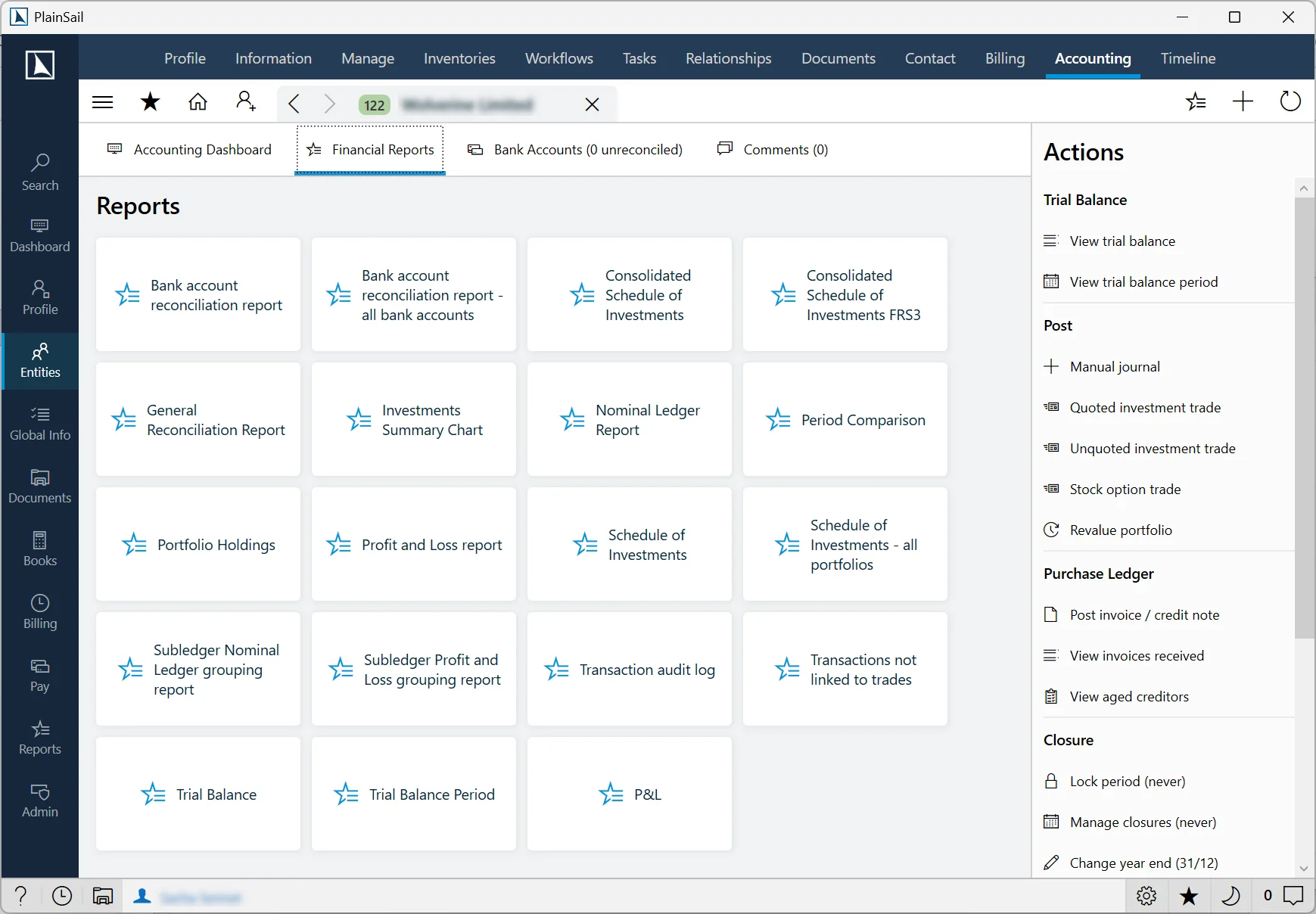
- SSRS Reports – reports provided by your organisation (trial balance reports, transaction listings, portfolio reports).
- Internal Reports – application-generated reports (ledger balance reports).
Click a report to launch it. Reports can be opened in the web viewer or an embedded viewer. Requires Entities_Accounting_ViewAccountingReports.
Global bookkeeping reports
From the main Bookkeeping menu:
- Debtors – aged debtor analysis.
- Overdrawn Bank Accounts – accounts with negative balances.
- Ledger Balance Reports – customisable balance reports.
Available accounting reports
| Report | Description | Access |
|---|---|---|
| Trial Balance | Full trial balance for an entity with drill-down to individual transactions. | Entity Accounting tab. |
| Profit & Loss | Income and expenditure statement for a period. | Reports Dashboard or Entity Accounting Reports. |
| Balance Sheet | Statement of assets, liabilities, and equity at a point in time. | Reports Dashboard or Entity Accounting Reports. |
| Bank Reconciliation | Statement showing reconciled and unreconciled bank transactions. | Entity Accounting tab > Bank Reconciliation. |
| Aged Debtors | Outstanding invoice balances grouped by age. | Billing area or Reports Dashboard. |
| Aged WIP | Work-in-progress balances grouped by age. | Billing area or Reports Dashboard. |
| Financial Statements (FRS) | Full financial statements workbook (calculated from trial balance). | Entity Accounting tab > Financial Statements. |
| Transaction Listing | Detailed list of all transactions in a period. | Entity Accounting tab > drill down from Trial Balance. |
Running a report
Navigate to the entity’s Accounting tab or the Reports Dashboard.
Select the report type.
Set parameters:
- Date range – start and end dates for the reporting period.
- Entity – the entity to report on.
- Currency – reporting currency (defaults to entity base currency).
- Comparison period – for P&L and Balance Sheet, set a prior period for comparison.
Click Run. The report opens in the report viewer.
Report export formats
Reports can be exported in the following formats:
- Excel (
.xlsx) - Word (
.docx) - PDF (
.pdf) - CSV (
.csv) - HTML
- XML
Financial Report Builder
The G/L Balance report builder allows you to view balances across groups of accounts for different time periods – ideal for rolling comparisons such as month-on-month profit and loss, quarterly performance analysis, or year-on-year trends.
Creating a new report
Navigate to Reports > G/L Balance Report. The toolbar provides four key options: Expand Options, Date Periods, Entities, Ledgers, and Open Report (for loading previously saved reports).
Date periods
Add one or more date periods, each defined by a start and end date. You can optionally exclude closing transactions – useful for monthly income reports where closing entries would distort the figures. Dates can be entered in two formats:
- Fixed dates – specific calendar dates (e.g. 01/01/2026 to 31/03/2026)
- Dynamic dates – system-resolved at runtime. Examples include:
FirstDayOfCurrentMonth/LastDayOfCurrentMonth– resolved to the current month when you run the reportStartOfCurrentQ1/EndOfCurrentQ1– quarterly boundaries for the current financial yearRunDate– the date the report is executed
Date arithmetic
Dynamic dates support arithmetic – add or subtract years, months, or days using syntax such as AddYear -1. For example, StartOfCurrentQ1 with AddYear -1 in 2020 resolves to 01/01/2019, giving you a straightforward way to build year-on-year comparisons.
Multiple periods
You can add as many date periods as needed for side-by-side comparison. A common configuration is Q1 of the current year alongside Q1 of the previous year, making variances immediately visible.
Entities
Select the entity or entities to run the report against. Multi-entity reports consolidate balances across the selected entities.
Ledger groups
Add groupings such as “Income” or “Expenses”. Use the edit icon to choose specific G/L accounts within each group. Reorder accounts within a group by dragging them to the desired position. Each account line has a Value to Display option:
- Absolute Value – always displays as a positive number
- Opposite Value – inverts the sign (e.g. for P&L accounts where profit should appear as a positive figure)
- True Value – displays the value as-is from the ledger
Use the calculator icon on the group header to toggle the display option for all accounts in the group simultaneously.
Running and saving
Give the report a descriptive name, then click Play to execute. Click Save to store the report configuration for future use – saved reports retain all date periods, entity selections, and ledger groupings.
Invoice Layout
Invoice templates are customised through PlainSail’s document management system, allowing you to tailor the appearance and content of client invoices while preserving the dynamic data fields that populate at generation time.
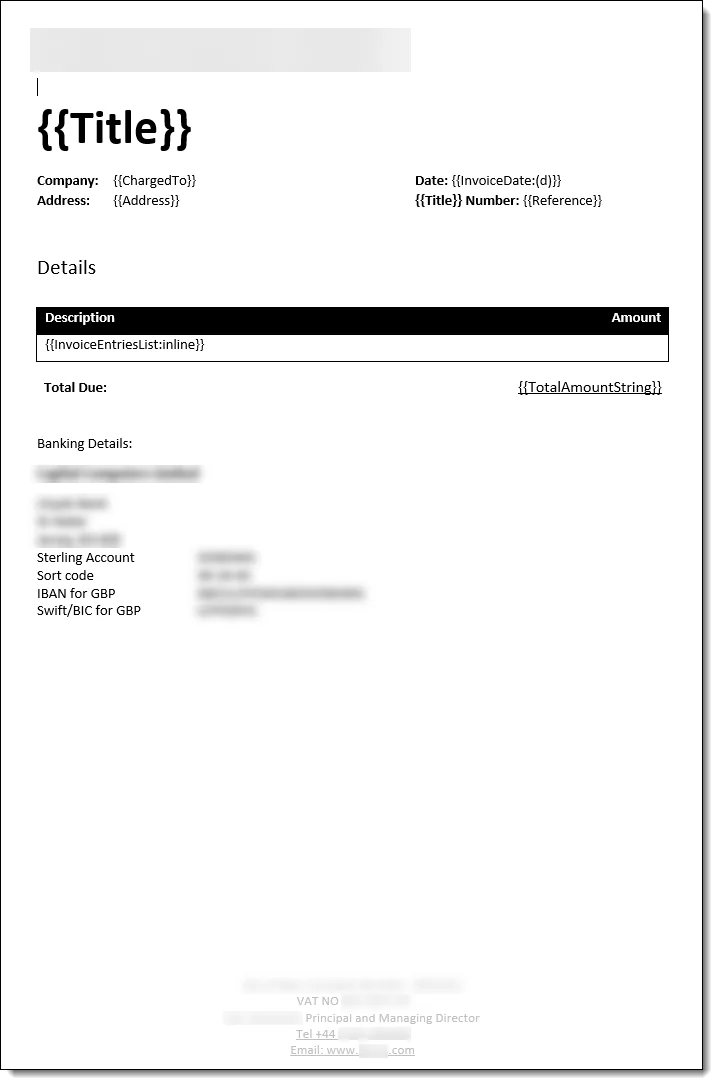
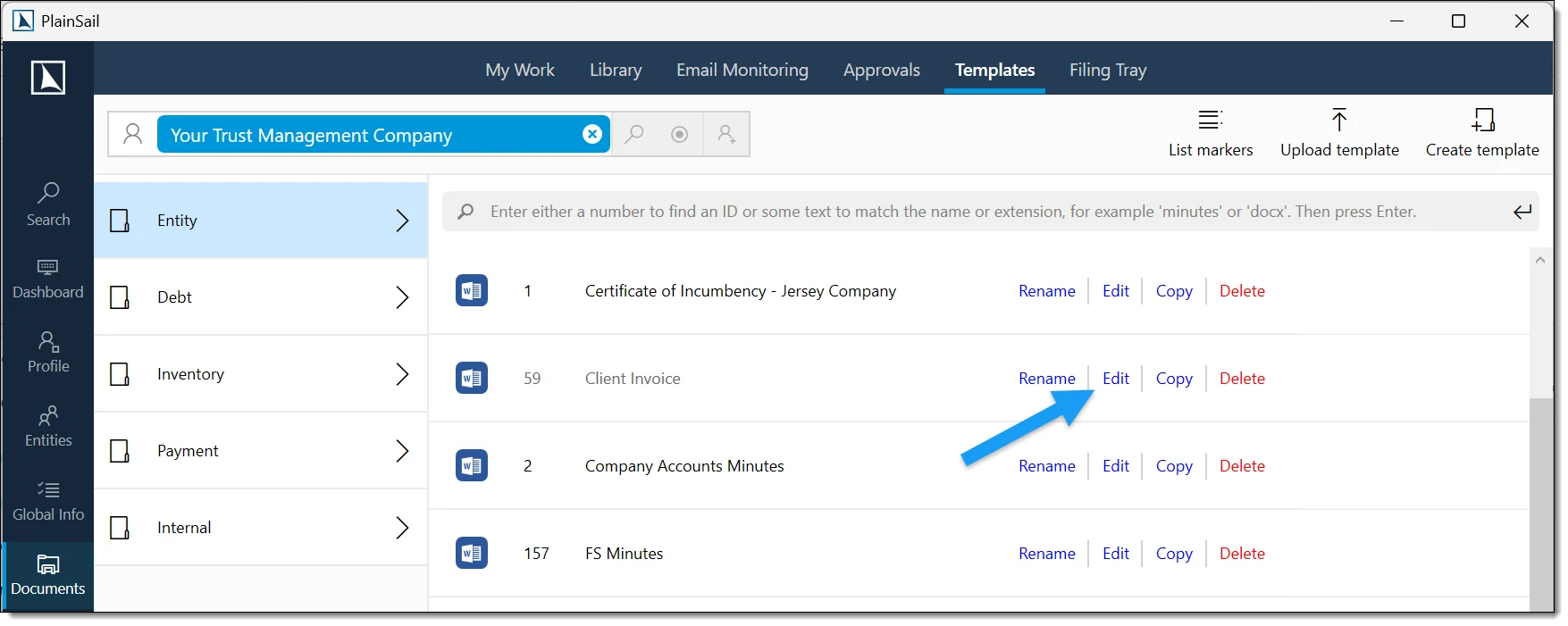
Navigate to the charging entity: Entities > [Your Company Name] > Documents > Document Templates.
Open the document named Client Invoice for editing – this opens the template in Microsoft Word.
Make your changes to the layout, formatting, logos, or static text. Do not delete any markers that look like {{ ClientReference }} – these are used by PlainSail to populate invoice data dynamically.
Save and close the Word document.
Check the document back in via the bottom bar, which shows documents currently checked out. Click the Save icon next to “Client Invoice” to complete the check-in.
{{ ... }}) when editing the invoice template. These are replaced with live data during invoice generation – removing them will result in missing information on produced invoices. If you are unsure which markers are available, contact support for a full list.
Period-End Locking
PlainSail supports period-end locking to prevent transactions from being posted to closed periods. This is managed through the year-end close process:
Navigate to the entity’s Accounting tab.
Run the year-end close process, which locks all periods up to the year-end date.
After closing, transactions cannot be posted with dates in the closed period without administrator override.
Permissions Reference
A complete list of roles used by the Bookkeeping and Accounting module:
Entity accounting roles
Entities_Accounting_View– access the entity Accounting tabEntities_Accounting_PostJournal– create and post transaction batchesEntities_Accounting_PostTrade– post investment trades and revaluationsEntities_Accounting_ReconcileBankAccount– access bank reconciliationEntities_Accounting_ReverseBatch– reverse posted batchesEntities_Accounting_ViewTrialBalance– view trial balancesEntities_Accounting_ViewAccountingReports– view accounting reportsEntities_Accounting_ViewPracticeManagementAccounts– view practice management accountsEntities_Accounting_ChangeAccountPlan– change an entity's account planEntities_Accounting_CloseYear– perform year-end closuresEntities_Accounting_Portfolio_View / _Create / _Edit– portfolio management
Bookkeeping area roles
Bookkeeping_View– access the Bookkeeping areaBookkeeping_Invoices_Post– post invoicesBookkeeping_Payments_Make– make paymentsBookkeeping_MyBatches_View– view your own batchesBookkeeping_OtherUserBatches_View– view other users' batchesBookkeeping_Scenarios_View / _Edit– scenariosBookkeeping_ChartOfAccounts_View / _Edit / _Delete– chart of accountsBookkeeping_ChartOfAccounts_AccountPlans_ViewEditDelete– account plansBookkeeping_BankReconciliation_BankDownloads_View– bank downloadsBookkeeping_BankReconciliation_Rules_View / _Edit / _Delete / _CreateGlobal– reconciliation rulesBookkeeping_QuotedInvestments_View / _Create / _Edit– quoted investmentsBookkeeping_UnquotedInvestments_View / _Create / _Edit– unquoted investmentsBookkeeping_ExchangeRates_View / _Edit– exchange ratesBookkeeping_ManualJournal_InvestmentAccounts– manual journals to investment accountsEntities_Loans_View / _Create / _Edit– loansEntities_Debts_View– view debts
The fixed asset depreciation, valuations, and group consolidation features introduce no additional role constants. Depreciation and consolidation posting and reversal are governed by Entities_Accounting_PostJournal and Entities_Accounting_ReverseBatch; the valuation row actions follow the view permission of the screen they appear on, and Import global valuations is available to Super Users only.
Keyboard Shortcuts
- Ctrl+N – create a new batch (from batch list)
- F1 – toggle hints in the batch editor
- F2 – copy last transaction (duplicate)
- F3 – create opposite of last transaction (reversal)
- F4 – set source from book balance
- F5 – refresh from database (most list screens)
- Ctrl+S – save scenario (in scenario editor)
- Ctrl+Shift+R – reconcile all matched items (bank reconciliation)
- Escape – cancel current operation / close popout / restore list
FAQ
Why do the “All Active” and “All Archive” batch tabs require Administrator?
These tabs show batches from all users, which is a privileged view. Only the Administrator role is required.
What happens if a batch has zero transactions when I close it?
The batch is automatically deleted. This prevents empty batches from cluttering the batch list.
Can I reverse an FX revaluation batch generated during year-end?
If you start the year-end wizard, generate the FX batch in Step 3, then navigate away without completing, the FX batch remains posted and is not automatically reversed. You would need to manually reverse it using the Entities_Accounting_ReverseBatch role.
Which entity types support financial statements?
Company, Corporate Entity, Trust, and Foundation. Other entity types are not supported. Microsoft Excel must also be installed locally.
Can I change a ledger code after it's been used in transactions?
No. Once a ledger is in use by transactions or rules, the code field is restricted and cannot be changed.
What file formats are accepted for exchange rate imports?
Only .xls, .xlsx, and .csv files. The API fetch date range must be within a single year.
Can I delete a ledger that has been used?
No. Ledgers that have been used in transactions or rules can only be marked as inactive ("not in use"). They cannot be permanently deleted.
What happens when I delete an account plan that entities are using?
The plan is marked as "not in use" instead of being deleted. Entities currently using it retain access, but it cannot be assigned to new entities.
Can scenarios use investment subledger types?
No. Scenarios do not support Quoted Investment or Unquoted Investment subledger types in transaction lines.
How does batch locking work?
Only one user can edit a batch at a time. When you open a batch, it is locked. If another user tries to open it, they see a "locked by [user]" message. Locks are released when the editor window is closed.
How do I reverse a posted batch?
Select the batch in the entity’s Accounting > Batches screen and click Reverse. A contra batch is created and posted automatically. The original batch’s status changes to Reversed.
How do I handle intercompany transactions?
Post separate batches on each entity with matching narrative references. Use Scenarios for group-level eliminations. See the Intercompany transactions section under Scenarios.
How do I run a report for multiple entities?
From the Reports Dashboard, select a report and set the entity parameter to include multiple entities (where the report supports this). To produce a consolidated trial balance on a group entity, use Group Consolidation; elimination entries remain manual or scenario-based.
What subledger types are available and when should I use each?
Subledger types depend on your chart of accounts configuration. Common types are debtors, creditors, and investments. Use subledgers when you need detailed tracking of individual balances that aggregate to a control account.
Does the consolidation module eliminate intercompany balances?
No. It aggregates and translates source trial balances only – intercompany balances, parent investments, subsidiary equity, and non-controlling interests are not eliminated. Post elimination journals manually in the group entity, using Scenarios for reusable eliminations.
In what order can consolidation runs be undone?
Newest first. Only the latest posted run can be undone, and earlier runs unlock as later ones are reversed. A run whose value date falls in an accounts-locked period cannot be undone.
Which depreciation methods and conventions are supported?
Straight line (useful-life basis) and diminishing balance (rate basis), each with full-month or actual-days averaging. Amounts round to two decimal places, and the final straight-line period charges the exact remainder so no residue is left on the asset.
Can I post the same depreciation period twice?
No – a period with an existing active run is blocked. Reverse the run first: the reversal posts a contra batch, and the contra itself can never be reversed.
Do valuations post to the ledger?
No. Valuations are memorandum records only. Portfolio revaluation is the accounting feature that posts investment movements.
Can a holding have more than one valuation record?
No – each holding carries exactly one valuation record, with unlimited dated entries beneath it.
- Entities & Client View – entity-level accounting tabs and financial data
- Billing & Invoicing – WIP, invoicing, and debtor management
Test Yourself
Test your accounting knowledge with these 13 questions covering journals, reconciliation, year-end, and the features that will make your bookkeeping more efficient.